Parts used for task

Top  Previous  Next

Parts used for a task can be entered on the vessel but not in the office. Unlike the parts used for overhaul in planned maintenance, there is no definition of parts that are likely to be used when a task is created.

Add parts used for task

taskListVessel_Parts_1

taskListVessel_Parts_2

1.Go to menu "QHSE" > "Tasks".
 

2.Click on "Search" to load the list of tasks.
 

3.Select a task.


4.Click on "Used parts".
 

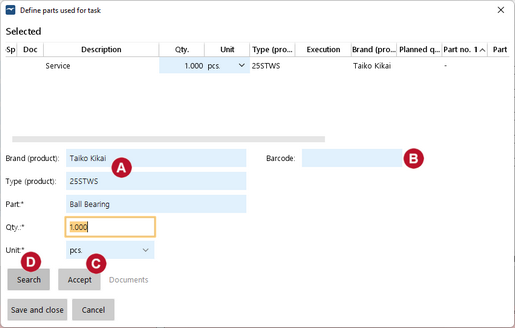
5.Select the Brand and Type of the respective Product ball_A_t. If the task is already related to a Product Type, this type is already selected (but may be changed).


6.Search for parts by writing the part name or part number directly in the field "Part". As soon as you have entered at least three characters, the list of matching pats will show up. Select a part.

Best Practice

If you use a barcode scanner to identify your spare parts, you can also click into the field "Barcode" and enter the respective number by scanning the code.   ball_B_t. For guidance on how to implement barcode scanning into the Stock Management, Planned Maintenance and Tasks of  MESPAS TSM please contact MESPAS .

7.Enter the quantity in "Qty" and change the "Unit" if necessary.


8.The parts get added to the list by clicking the "Accept" button ball_C_t.

9.For a advanced search or if a part got used that is not in the system, click "Search " ball_D_t.
 

10.Write a search term into the search field and click on "Search" to get a list of search results ball_E_t.
 

11.By entering a quantity ball_F_t and pushing the enter-key the item will be added to the list.
 

12.If a part was used that is not in the system, press the button "New part" to define it ball_G_t.

warning

The part will not be generally added to the partslist in the MESPAS TSM, only to the parts used for the job.

13.Click the button "Close search" to get back to the list of parts you have entered.


14. Select all parts from the list and click on "Remove from stock" to remove the quantity used directly from the stock.


15. You will be asked again in a pop-up window if you want to remove the parts. Click "ok".

.


View parts used for task

taskListVessel_Parts_3

1.Go to menu "QHSE" > "Tasks".
 

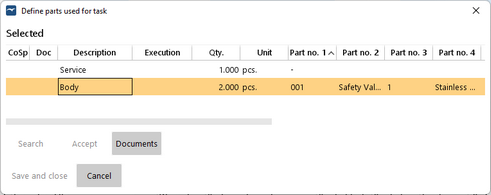
2.If parts were used for a task it is marked with a ticker in the column "Parts used".
 

3.Select a task.
 

4.Click on "Used parts".