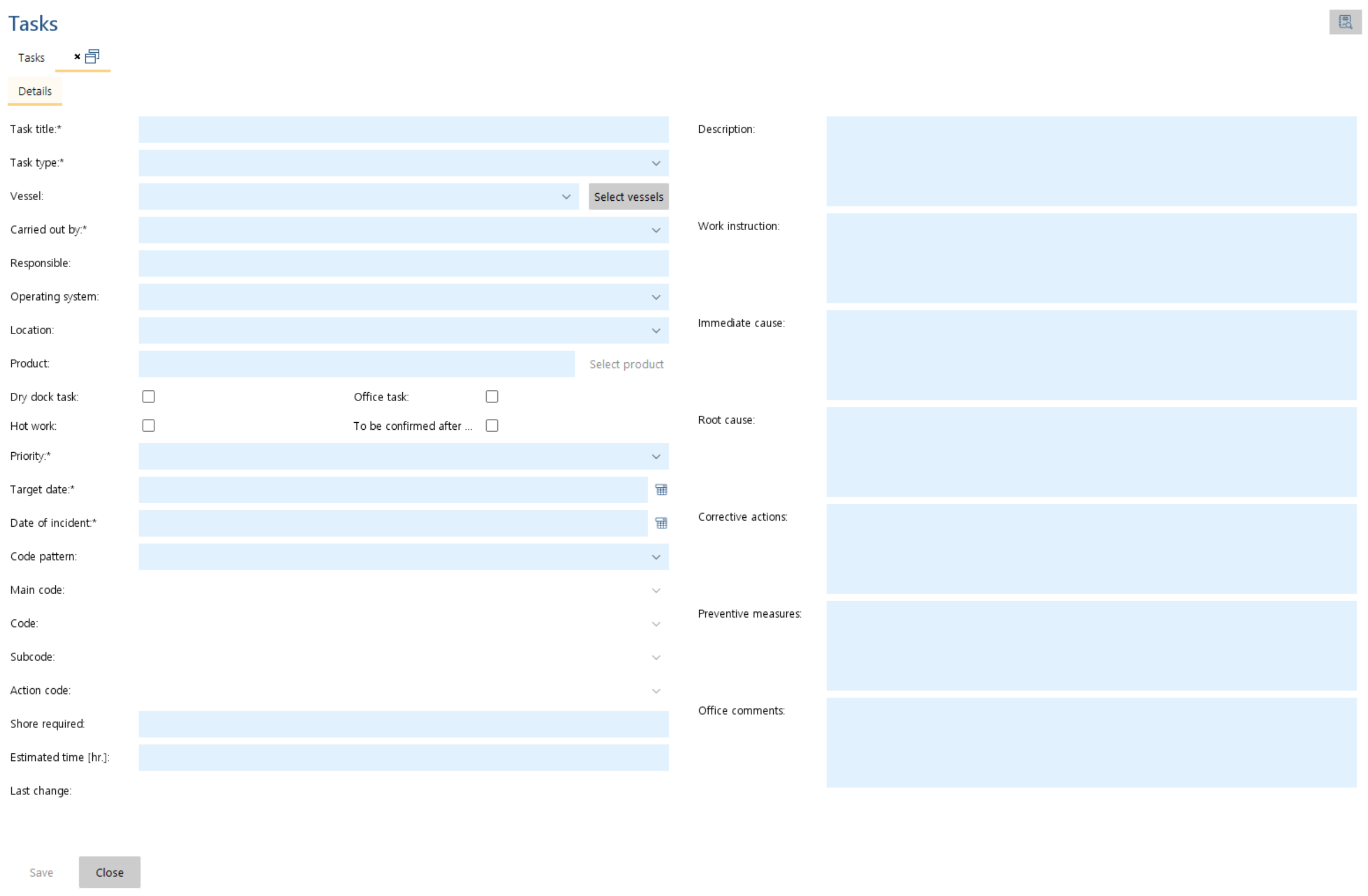
1.Go to menu "QHSE" > "Tasks". 2.Click "Add". 3.Fill in task details:
- A task has to be related to either to an Operating System or a Product (but not both).
- When selecting a product you can either browse for it in the product tree or search for Label, Type or Serial No. with a click on the Search tab. The search is additive, i.e. if you enter several search terms it will give you all items where one of the terms apply. To search for items where all of your search terms apply, put them into quotation marks ("Main Engine").
- The field "Location" refers to an Operating System only, as if a Product is selected, the location is already given with the product.
- "To be confirmed after completion" requires you to personally confirm the successful completion of the task added by you before it can be finished.
- "Hot Work" indicates that the task includes welding or other techniques that cause high temperatures.
- Depending on the code pattern (as e.g. the SIRE code) you may enter codes with up to three hierarchical levels.
- You have to enter a "date of incident". Many (but maybe not all) tasks are caused by an incident of any sort (e.g. an accident, damage, port stay etc.). Enter the date to be able to sort tasks by this date. If no incident is related to the task, just enter the task creation date.
4.Click "Save".
5.Enter another task or click on "Close". |