On the screen Inspection report you can enter individual tasks that are grouped to an inspection (e.g. class audit, port state inspection etc.). This allows you to easily manage tasks with reference to an inspection and to present KPI figures required from ISM.
|
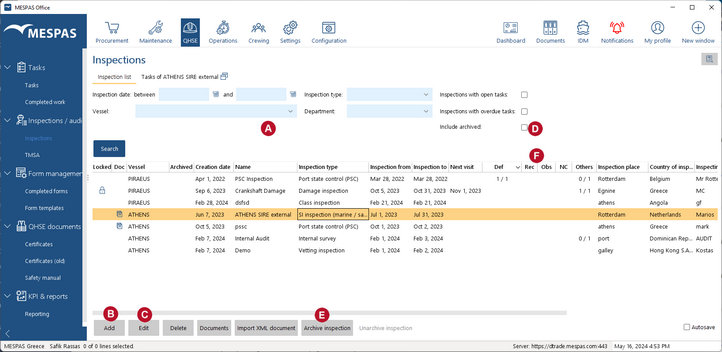
1.Go to menu "QHSE" > "Inspection report". 2.Fill in the filter fields to search for an inspection •the field "Outstanding" filters for inspections with open tasks that are not yet overdue. •the field "Overdue "filters for inspections with open, overdue tasks. •if both fields are ticked only inspections with with outstanding and overdue tasks will show up. •Select if "Archived" inspections should appear or not 3...click on "Add" to enter a new inspection
4.Fill in the relevant details to the new inspection. 5.Click on "Save" and "Close". 6.To modify the inspection record or to add a task to an inspection, select the relevant inspection and click on "Edit"
7.Once an inspection is finished may "archive" this record. You can "Un-archive" it at any time |
||
QHSE indicators: Inspections containing following task types will be aggregated and displayed in the corresponding columns separately •Def : deficiencies •Rec: Recommendations •Obs: Observations •NC: Non-Conformities •Others |
|||
Locked (not editable) inspections: •An inspection is locked on the vessel, when it was entered in office or when it is committed. •An inspection is locked in office, when it was entered on the vessel an the vessel has it not yet committed |
|||
|
|||
|
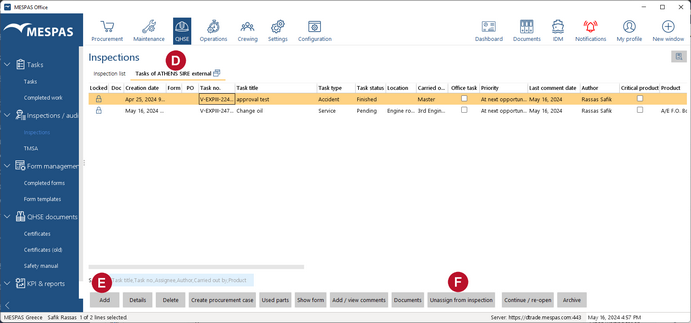
7.Select the tab "Task" 8.Click on "Add" 9.Fill in the Task details. It's the same fields as for any Task and you have the same functions as explained above. 10. You may dissolve the task any time from the inspection with a click on "Unassign from inspection" 11. To assign an already existing Task to an Inspection report, please switch to Tasks screen. 12. To create Inspection reports as required from ISM click on the report icon at the top left as described in chapter Create a report. |
||


Import Inspection reports from OCIMF-Portal
If your company is in the tanker business and loads its inspection reports to the OCIMF-Portal, you may import them to MESPAS TSM. From all findings of the inspection the software will automatically generate Tasks on the Tasks.
1.Log in to the OCIMF portal on www.ocimf.org and download the respective inspection report in XML or JSON file format and save it to your desktop.
2.In MESPAS TSM go to "Operation > Inspection report".
3.Click on "Import XML Document".
4.Click on  to browse for the XML on your desktop and click on
  .
.
5.After the import a message show all created Tasks. Confirm with "OK".
6.Reload the screen (e.g. with a click on  ) to show the new imported inspection report in the list.
7.Select the imported inspection and open it with a click on  .
.
8.Click on the tab "Tasks" to check or edit the new Tasks.