You may open a procurement case belonging to a task directly from the Tasks.
|
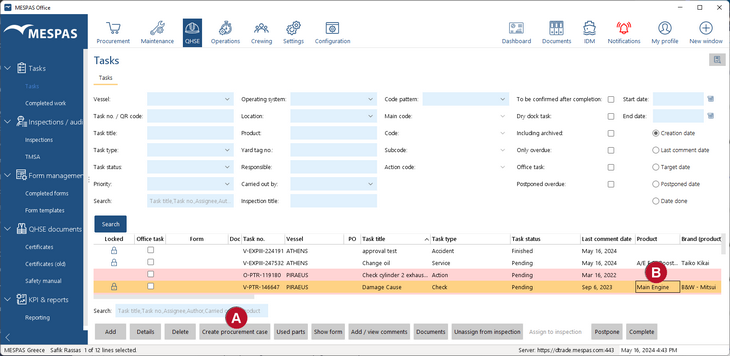
1.Go to menu "QHSE" > "Tasks". 2.Select a task. 3.Click "Create procurement case"
4.In the "Product" column you can refer to the machinery the task is assigned to to order the correct spares/services
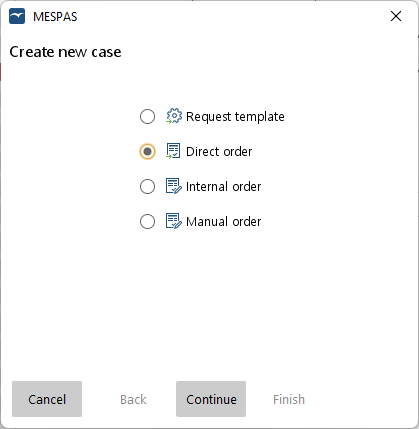
5.You will be asked at which stage you want to start the purchasing step. You may select "Request template", "Direct order", "Internal order" or "Manual order"
6.By "Continue" button you will be brought to the product picker where you can select any product from the vessel where the task is assigned to.
NOTE: You cannot select a product from another vessel except the one the task is assigned to.
References: •The procurement case then contains the task number in the subject line as a reference.
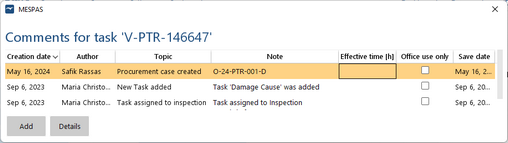
•The task comment contains the procurement case reference number. |