Select columns to be displayed, arrange columns order and sort by columns
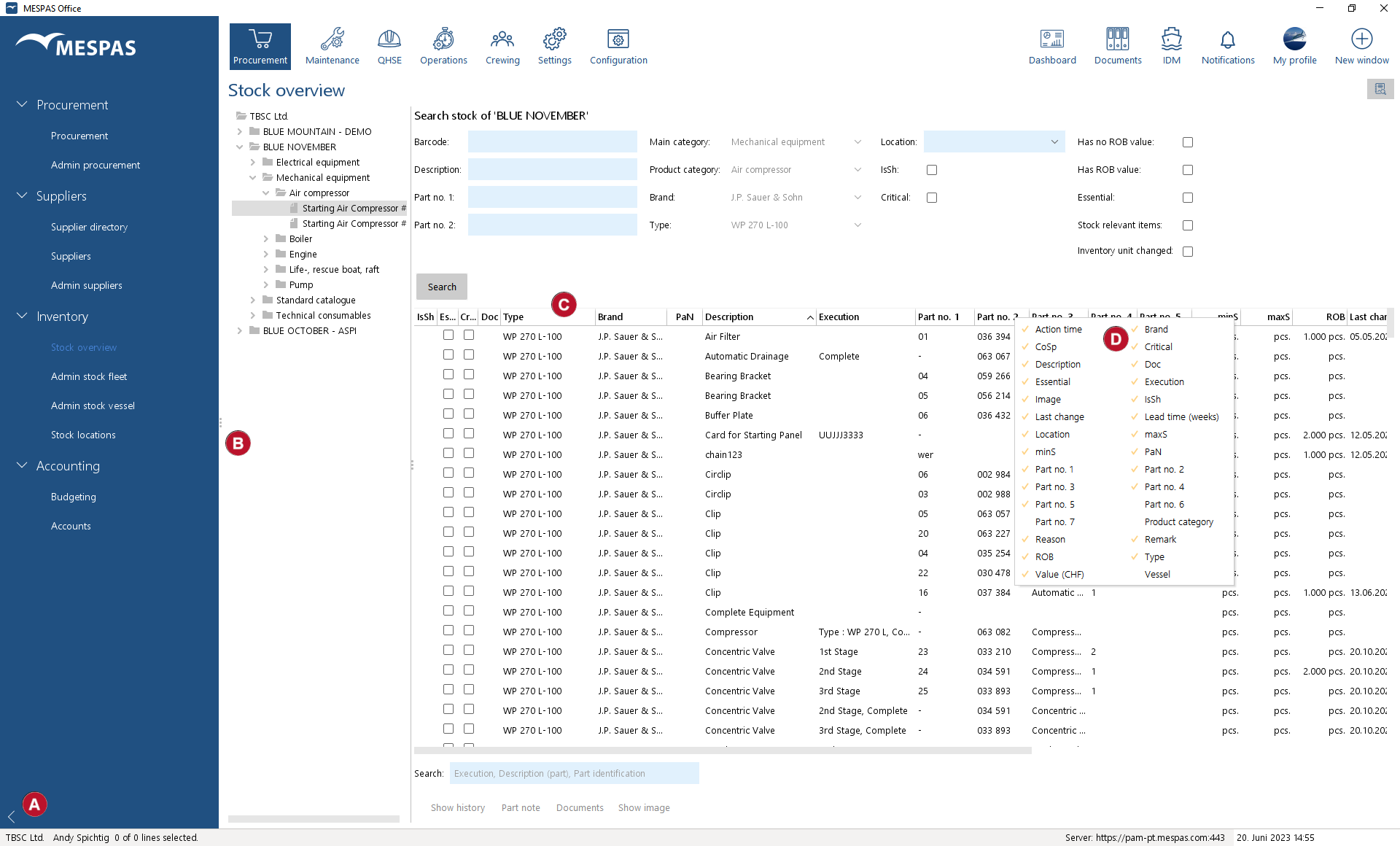 |
•To hide the menu bar on the left, you can minimize by clicking the white arrow on the button •To select which columns to display/hide, right-click any column header and tick/untick the columns to be displayed/hidden . •To sort by a column click the column header •You may arrange the order of columns by clicking its title and drag it to the right or left. |


Load lists, filter lists and search within lists
An active filter is indicated by a dark yellow background:
|
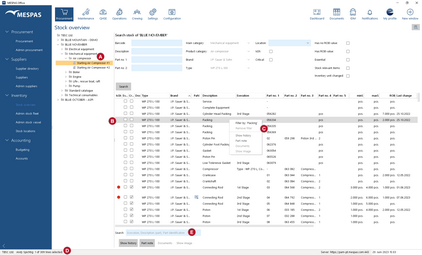
1.Select a data item in the data tree 2.Filter list by specifying part of the data item description 3.At the bottom of the most screens it is indicated how many lines are shown and how many of them are selected 4.Search within list by specifying part of the data item description 5.You may use below characters to refine your search: |


Copy and paste data to MS Excel
All tables and lists in MESPAS are designed that you may copy data and paste it to Microsoft Excel or similar software.
1.Select the lines you like to copy with "Ctrl"+ mouse for individual lines, "Ctrl" + A for all lines or "Shift" + Mouse for a several lines in a row.
2.Press "Ctrl" and C to copy.
3.Switch to MS Excel and press "Ctrl" and "P" to paste.