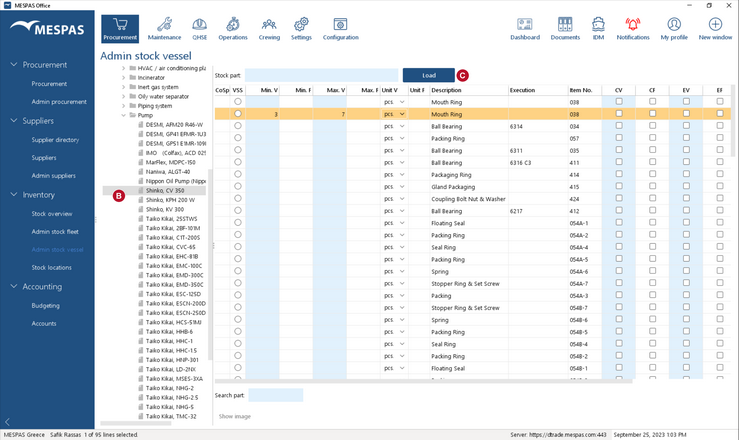
The stock/inventory settings can be made on fleet level and apply to all vessels or they can also be made for each installation separate. The stock settings include minimum and maximum ROB (Remaining on board) values, the unit an item is counted or measured in, the parts value, lead time and markings for critical and essential parts.
Set up stock control on fleet level
|
1.Go to menu "Procurement" > "Admin stock fleet" 2.fleet. 3.Select parts in the data tree by "Main Category" > "Product Category" > "Product Type"
The following settings can be done: oMinimum Stock (minS) oMaximum Stock (maxS) oUnit oValue (in order to calculate the total stock value in the respective report on the Mespas Reporting Engine). oLead time oCritical Part (see below) oEssential Part (see below) All above information can also be altered at a later time.
The column "ISS" indicates if installation specific settings were defined (see below). |
||
|
|


Set part as critical or essential
The definition of parts as "critical" or "essential" is used for easy filtering in the Stock overview Screen and for reporting purposes.
The difference between critical parts and essential parts is that the monitoring of critical parts has to be reported to authorities as the flag state or the class, while the monitoring of essential parts is for internal use. You may e.g. define a main engine spare part that is needed to ensure the vessels manoeuvrability as critical, but a spare part for the coffee machine as essential.
The part is always set critical or essential on all equipment (products) of the same model (product type) and on all vessels of the fleet.
For instructions on how to set a whole product as critical or essential, please see the chapter "Add or edit product".
Set up stock control on vessel level
|
1.Go to menu "Procurement" > "Admin stock vessel. 2.Select parts in the data tree by "Vessel" > "Main Category" > "Product Category" > "Product Type" 3.Click on "Load" The following settings can be done on installation level: oMinimum Stock (Min. V) oMaximum Stock (Max. V) oUnit (Unit V) oCritical Part (CV) oEssential Part (EV) Next to the settings on Vessel level there are columns showing the setting on fleet level (i.e. Min. F, Unit F, CF etc.). A setting on vessel level overrides settings on fleet level. If for example a minimum stock value of 6 is set on fleet level and a value of 3 for the same part on installation level, the minimum value on this installation is 3, on all other installations it is 6. There is no use in setting the ticker in CV or EV if there is already one in CF or EF. There is no way to exclude one vessel from a setting on fleet level. If you want to have a setting on all installations except one, you have to set it on all installations except one on installation level.
|
|
|