Behavior of documents in procurement
•Documents added to a request template, a request for quotation (RFQ) or an order will be added to the email sent to the suppliers. You can always use the "Share" ticker to define if the document shall be forwarded to the supplier or not.

•If documents get added to a request or order after the email to the supplier was already sent, the document will not be sent to the supplier.
•The status, whether a document was sent to the supplier or not, is visible in the "Documents" section under "Share" (Share with supplier).
•PDF-requests and orders are always attached to the respective request or order in MESPAS TSM, whether they are sent to the supplier or not.
•Documents added to purchase requests are not automatically available in the requests.
If the documents from the purchase request should be sent to the supplier, use the "All documents" tab to drag and drop the file into the request or request template.
(See following topics.)
Add a document
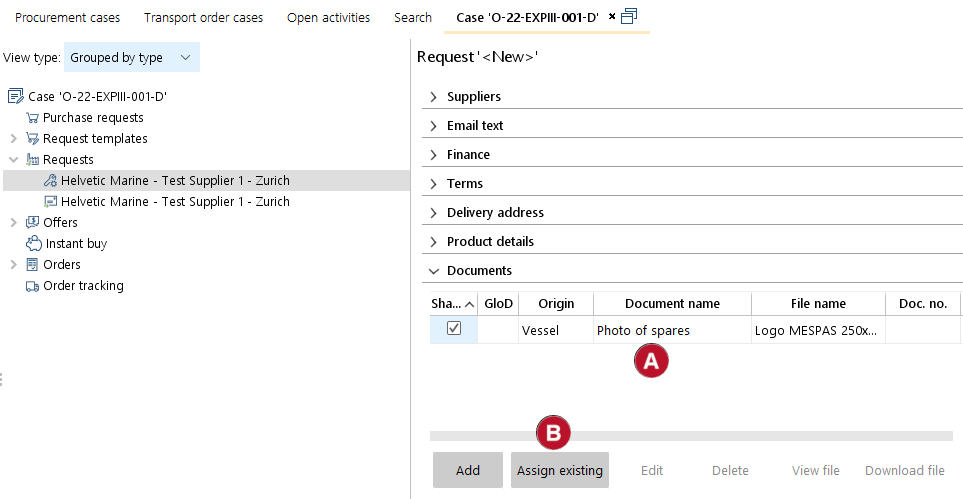 |
1.Drag-and-drop a document from your desk into the "Documents" section of any procurement object (e.g. the request template)
2.You may also pick a document from existing documents in MESPAS DMS section. Therefore you can click on "Assign existing" to select one or many documents to be linked to the request or order |
||
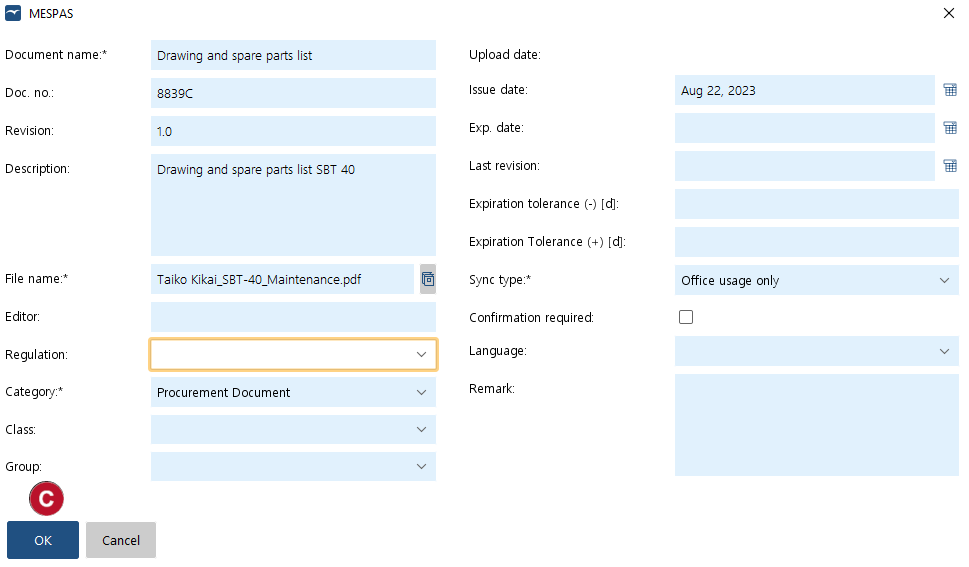 |
2.If you chose drag-and-drop option, fill in the required information in the dialog for adding a document. 3.Click on "OK" 4.The document will be linked to the request/order. |


View all documents of a procurement case
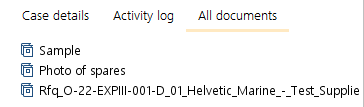 |
1.All documents of a procurement case are shown in the tab "All documents" . 2.Out of this view, "Drag and drop" can also be used.
|