|
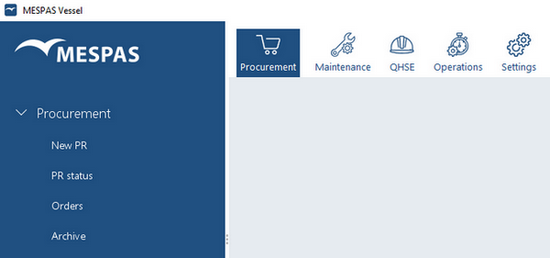
1.Select main menu "Procurement" 2.Click on "New PR" "PR" means "Purchase request" initiated from the vessel crew. |

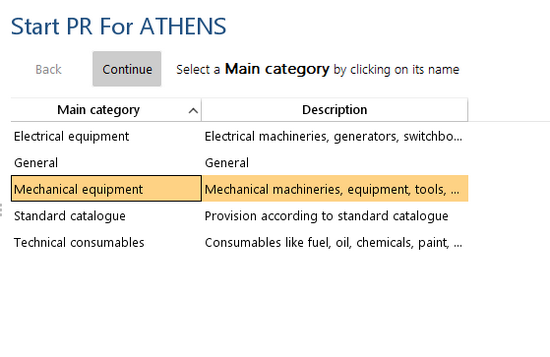 |
1.Select a main category e.g. "Mechanical equipment"
2.Click "Continue" button or double-click on the row selected.
|
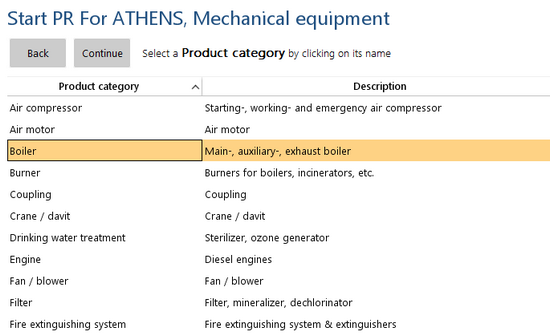 |
3.Select a "Product category" and click "Continue" or double-click the selected row. |
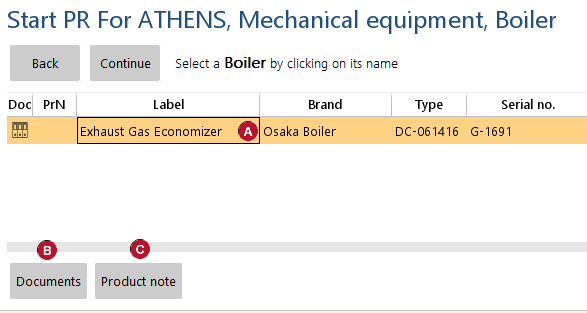 |
4.Select a product
NOTE: you may also want to check the machinery/product documentation before you do the request. Therefore you may click on "Documents"
|
 and click "Continue" or double-click the row.
 or "Product Note"
  to retrieve the corresponding information.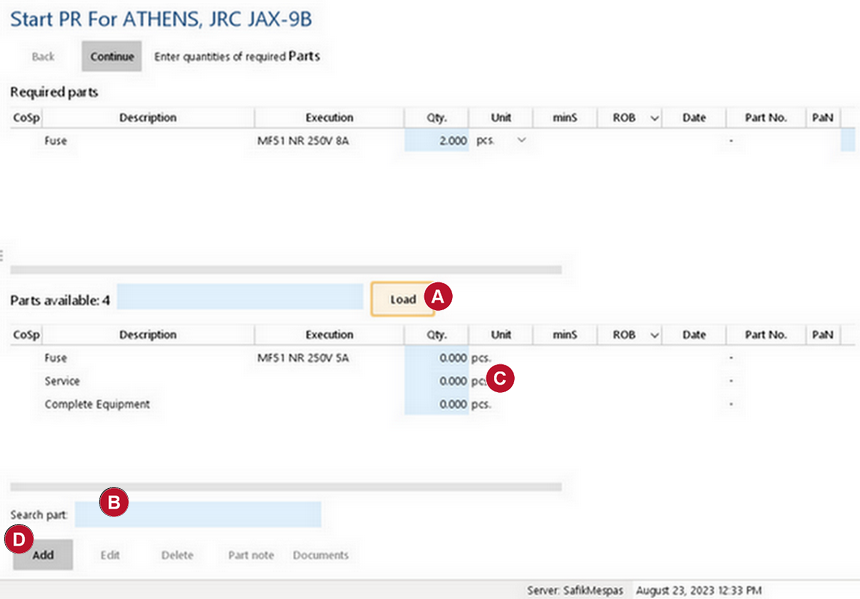
 |
Select and/or add parts and quantities 6.Enter part aspect (e.g. name, part no., dwg. number, etc.) and click "Load" NOTE: you can use * (asteriks) as a wild card in any search section in MESPAS.
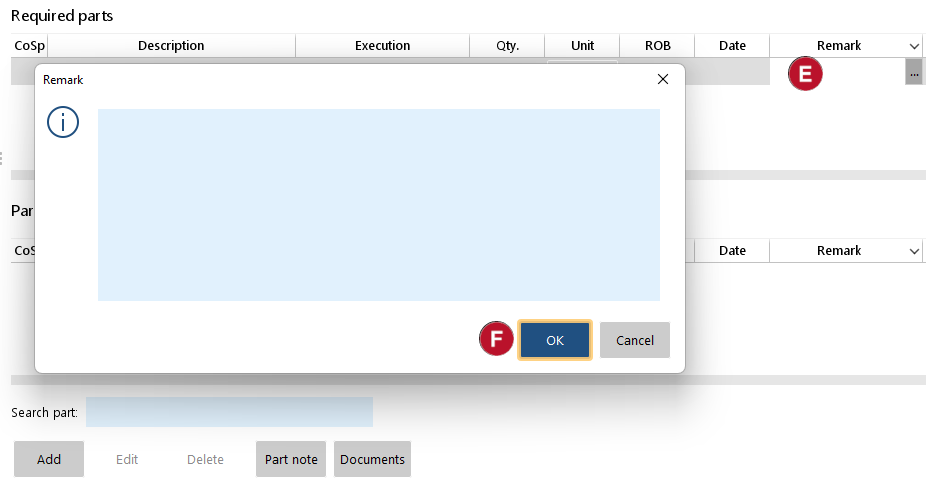
7.Enter the quantity and unit required in your selected part 8.If a part has inventory settings, the unit used in inventory will be set as default unit here. You may also select the item quality: Genuine or OEM (Original equipment manufacturer). You may also add a "Remark" 9.You may also view, download, add, assign, edit or remove documents in relation with the entire order. 10.Click "Continue". |
||
|


|
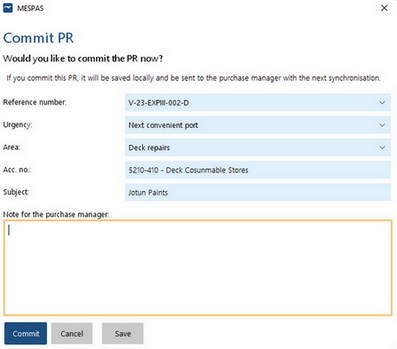
11. Add information/details about PR. The note for the Purchase Manager is not submitted to the supplier. 12. Click "Commit" or "Save". |