Create and transfer synchronisation file to the office
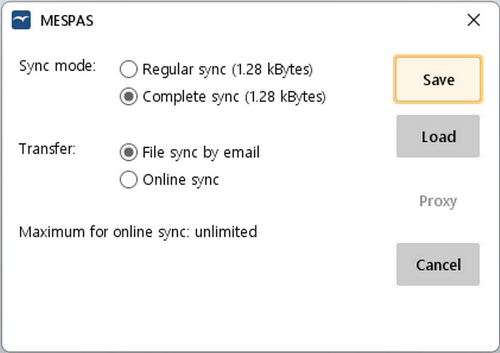 |
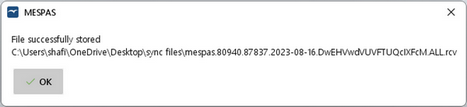
1.Click the button "Synchronise" in the top-right section of the screen. 2.Choose Sync mode: 3.Set Transfer to "File sync by email". 4.Click "Save". 5.Choose the directory where to save the .rcv file. 6.Click "Save". 7.When presented with "File stored" confirmation screen, click "OK". 8.Make sure that the .rcv file gets sent to sync@mespas.com. 9.Delete the .rcv file saved on your computer.
|

Receive and load a single synchronisation file from the office
 |
Normally you receive synchronisation files (".sen files") from sync@mespas.com. However, especially in case of software updates, you may also get synchronisation files by USB pen drive or CD-ROM (e.g. from an agent). You may also receive a link to download the file from your office or MESPAS. 1.Have the .sen file ready that you received trough one of the above channels. 2.Go to menu "Synchronise". 3.Click "Load". 4.Choose the .sen file received from sync@mespas.com. 5.Click "Open". 6.When presented with the "Updates received" confirmation screen, click OK.
|
Receive and load split synchronisation files from the office
If a synchronisation file gets too big to be transmitted in one email, it is split into parts. The email text from sync@mespas.com will indicate, in how many parts the file was split. The files are numbered, ending with .7z.001, .7z.002,.. 1.Save all split files received from sync@mespas.com in the same folder on your computer 2.In the MESPAS TSM software, go to menu "Synchronise". 3.Click "Load". 4.Choose one of the files from the folder where you saved the split files. 5.Click "Open". 6.When presented with the "Updates received" confirmation screen, click OK .
|


