It may be that an identical or very similar purchase is made several times or even regularly (e.g. a monthly provision order). In that case you do not have to enter all requested parts or items again, but you can reuse an order that is already in the system. You can reuse and edit any former order and create a new request template, direct order or internal order out of it.
|
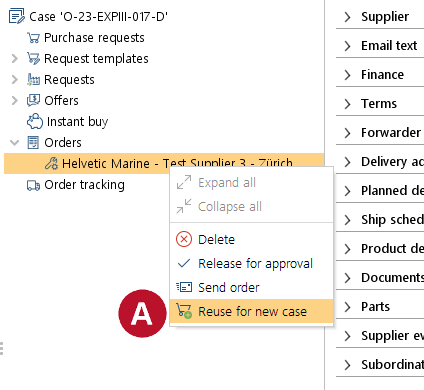
1.Go to menu "Procurement" > "Procurement" 2.Select an order or any request that you need to reuse. 3.Right-click the order/request in the case tree and select "Reuse for new case" |
|
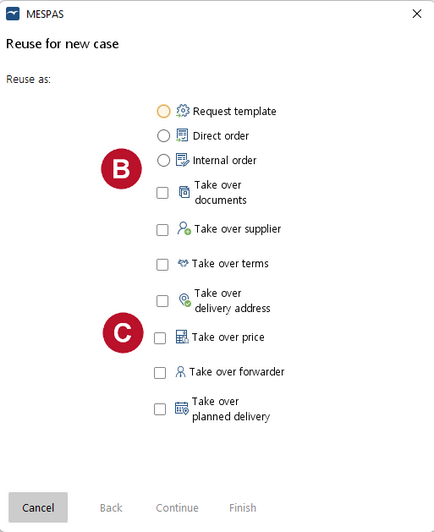
1.A window pops up and asks you if you want to reuse the order/request as a oRequest template or oDirect order or oInternal order or oManual order. 4.You are also asked, if you want to copy the prices, terms, delivery address, forwarder, planned delivery and documents from the existing order and also if it is for the same supplier. NOTE: "take over price is not possible for request tempalte or if you reuse a request 5. Click on "Continue". |
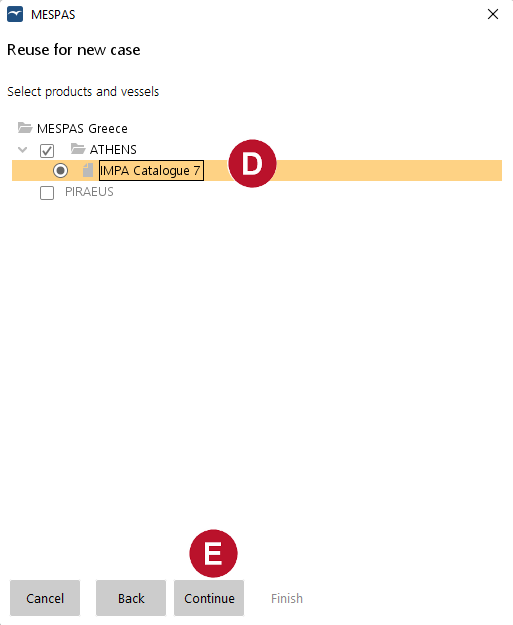 |
6.A fleet selection widow allows you to navigate to the desired target for which you plan the new procurement case. 7.Select the machinery / product of the new procurement case
8.You may select multiple products from different vessels. Like this multiple new procurement cases will be generated.
9.Click on "Continue" |
|
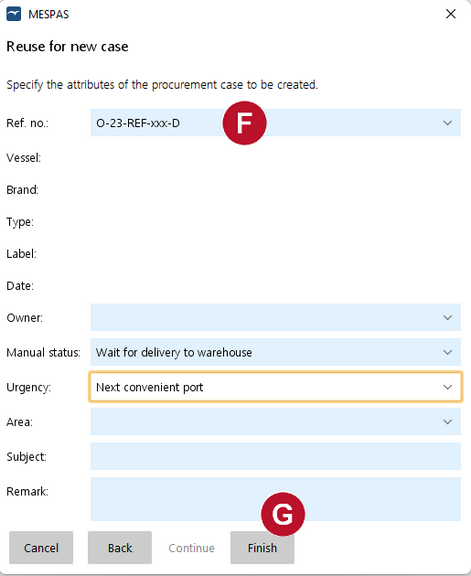
8.Select the reference number ending for the department (Deck or Engine) 9.Click on "Finish"
10.The new procurement case is then being generated and you can continue working on the corresponding request or order.
11. Click on the different sections to fill in the necessary information as usual. |