There are different ways to represent your companies approval processes in MESPAS TSM. The respective setting is done in the company parameters together with your MESPAS project manager when implementing the software to your company. Your company may either...
•not use any order approval function and give every user with the role "Superintendent" the ability to send orders of any order amount.
•use (regular) order approval, where every user with the role "Superintendent" and an order approval limit above the order amount can approve an order. Users with an order limit below the order amount can not approve the respective order or send it prior to approval.
•or use a multilevel order approval process as explained in the chapter "Multilevel order approval" below.
Order approvalGo to menu "Procurement" > "Procurement". 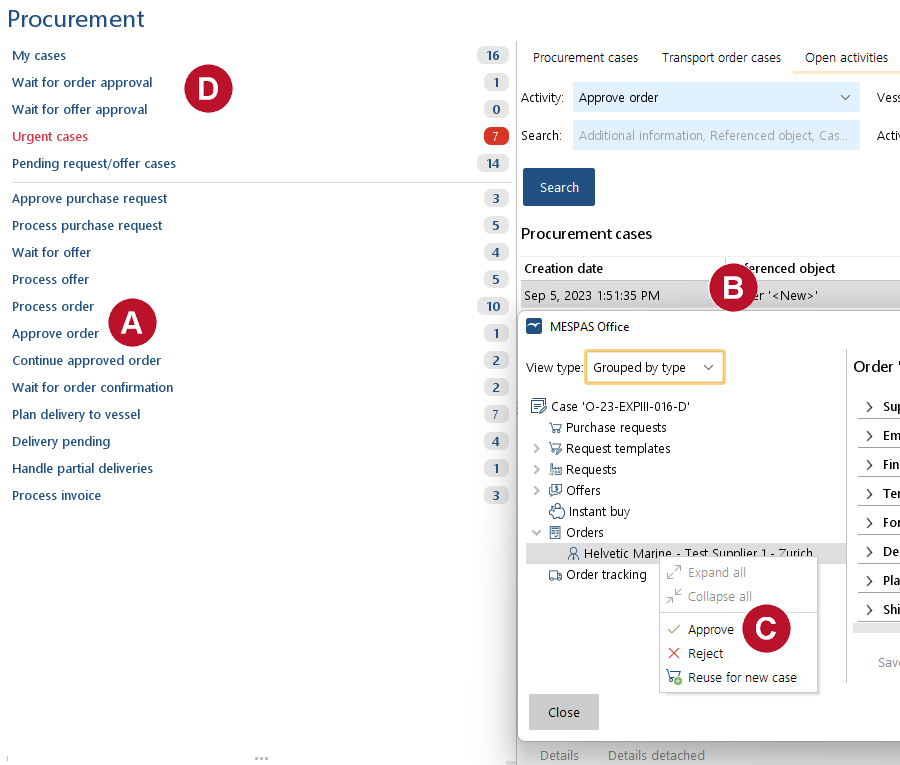 1.Select the filter "Approve order"
2.Select the order that has to be approved 3.After verifying the order, right click on it and choose "Approve" 4.If your order limit is below the order amount, you can find and view the order in the filter/list "Wait for order approval" |


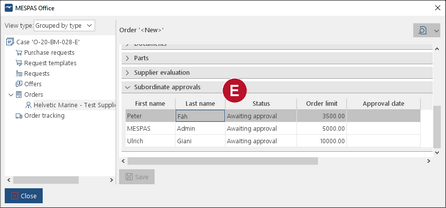
Multilevel order approvalIf your company uses multilevel order approval there is an approval hierarchy based on the order limit. The benefit of this approval process is that users with a high or unlimited order limit don't get all the low value orders in their "Approve order" to-do list but only the high value orders that they are responsible for and only after they were checked by subordinate coworkers. The filter "Approve order" If an order is created with an order value below the order creators order limit, this user may either release the order for approval, approve it and send it or send it directly without approval. If the order value is above the order creators order limit, a "Subordinate approvals" list is generated when the order is released for approval. You find this list as an object details tab of the order
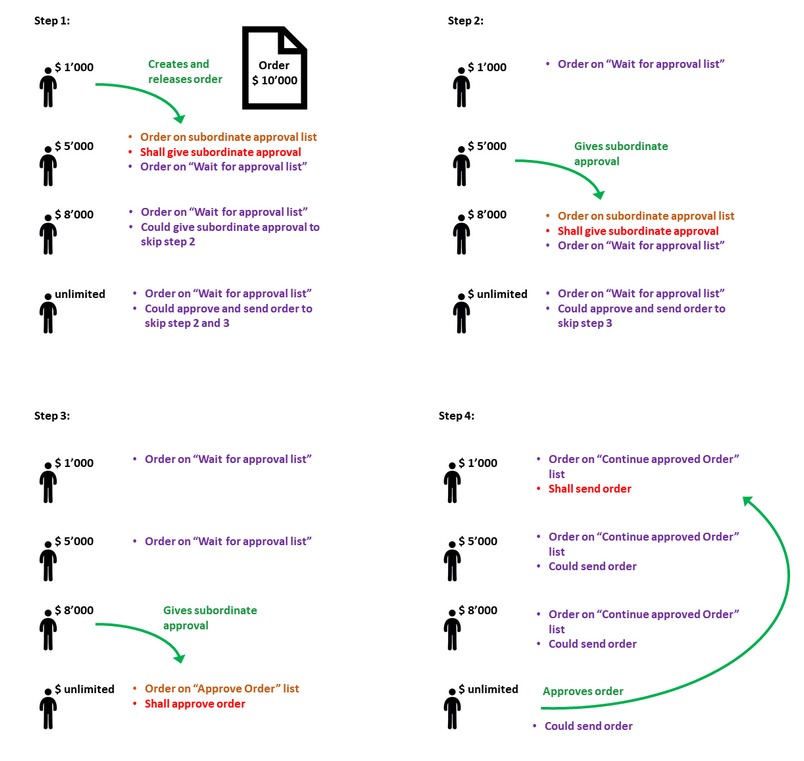
The approval workflow starts with one user with the lowest order limit above the order creators limit. This user is the first on the "Subordinate approvals" tab. Meanwhile users with a higher order limit don't see the order on their "to be approved" list/filter, but can check (and approve) it by using the filter "Wait for order approval". The order stays on the "subordinate approval" list/filter of a user until he or she gives a subordinate approval. After that it moves to he list/filter of a user with the next higher order limit. This goes on until the order shows up on the "to be approved list" of a user with a sufficient order limit or is actively searched for and approved on the "wait for order approval" list/filter by such a user. Example:In the below example there are four users: A Purchaser with an order limit of $ 1000, a Super Intendant with an order limit of $ 5000, the Fleet Manager with an order limit of $ 8000 and the Fleet Director without order limit. The order amount in the below example is $ 10'000 so that only the Fleet Director is allowed to give the final approval.
To approve or "subordinate approve" an order just proceed like with the regular order approval explained above. |

Send an order
|
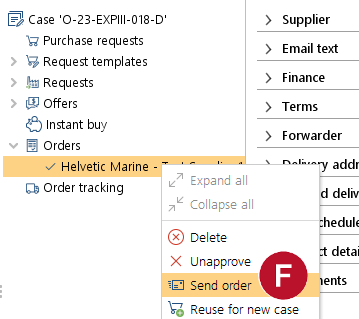
1.To send the order to the supplier, right click on the order and choose "Send order" 2.In a pop up window •...want to decline other requests and offers for the relevant case, •...if you like to notify automatically by email other not-considered suppliers that are involved, •...if you like to order without sending an email to the supplier and through MESPAS SBM only and •...if you like to enclose the order as PDF report to the email or not (it is saved in MESPAS TSM and MESPAS SBM anyway). 3.Click on "OK" to send the order. |


