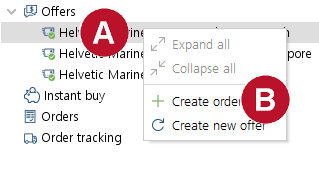
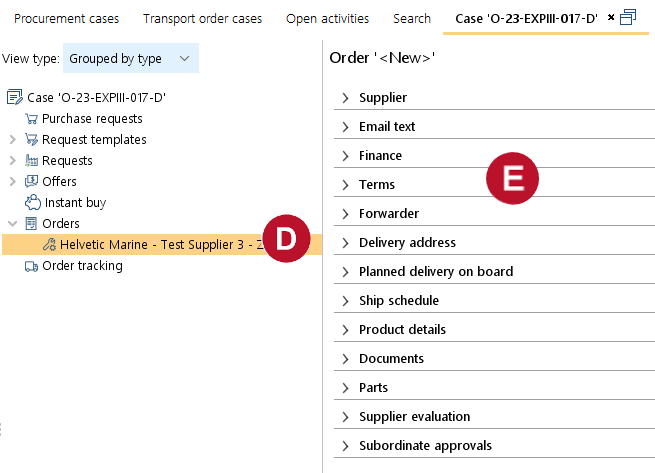
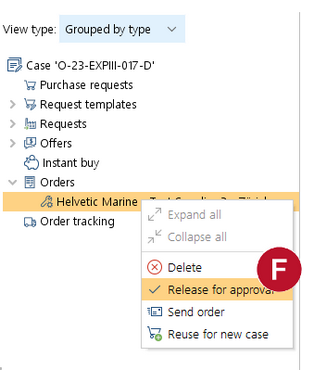
2.A new entry under "Orders"  will be created. The order is not yet sent to the supplier. 3.By clicking on the detail section of the order  , details of the order can be altered and saved. •The respective account code in the tab "Finance" can either be found by browsing trough the drop-down field or by typing the code or its description, in which case the selection will jump to the first fitting field in the drop-down. •The field "Account level" is only active if your company uses Project Codes. 4.In Delivery address you may select the address of an agent or warehouse etc. and a required delivery date, if already known. 5.In Ship schedules you enter the port where the goods have to be delivered. The next three ports as planned in the vessels ship schedule are shown per default. You may change the settings in the filter fields to show all past or planned port stays. |