|
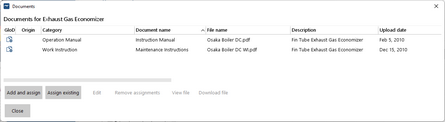
•To add a new document and immediately assign it to the current entity you're working on, click "Add and assign" and follow the instructions on the screen. •To assign an existing document to the current entity you're working on, click "Assign existing" and follow the instructions on the screen. •To remove the assignment of a document from the current entity you're working on, select the document in the list and click "Remove assignments".
Additionally you can also perform these general document activities: •To edit an assigned document's description (details/information about it), select the document in the list and click "Edit". •To view the current version of an assigned document, select the document in the list and click "View". •To download the current version of an assigned document, select the document in the list and click "Download". |
The assignment of a new added document depends on the screen you use to add it:
Screen/Location used for upload of a new document |
Assignment of the document |
Documents |
•Documents are assigned to your company and visible in DMS for the whole fleet (if Sync. Type of the document is not "office usage only"). |
Installation data management (IDM) |
•To assign a document to a vessel (e.g. a certificate) click in left side tree at the top level on your company. Then choose in the main screen the respective vessel. •To assign a document to a single product (e.g. Ballast Pump #2) choose the respective product in left side tree. The document is not assigned to another product of the same product type (e.g. Ballast Pump #1 which is the same model as Ballast Pump #2). •To assign a document to a single part (e.g. Ball Bearing of Ballast Pump #2) choose the respective part in left side tree. The document is not assigned to another part of the same product type (e.g. Ball Bearing of Ballast Pump #1 which is the same model as Ballast Pump #2). On the vessel there is no IDM screen. All documents assigned to a vessel, product or part are visible on this vessel in "Documents" screen (if Sync. Type of the document is not "office usage only"). |
Admin jobs fleet |
•To assign a document to a product type (e.g. Allweiler S3F) choose the product category in left side tree (e.g. Mechanical Equipment -> Pump) and click on the product type (e.g. Allweiler S3F). •To assign a document to a type of part (e.g. Ball Bearing of Allweiler S3F) choose in left side tree the respective product type and load and mark the part. Following the above example the document is now visible on all Ball Bearings of Allweiler S3F pumps (e.g. Ballast Pump #1 and #2 on several vessels). Documents assigned to product types or part types are visible on all vessels of your fleet where the respective model is installed and the respective part applies. •To assign a document to a PMS activity add and assign the document first to a product type as above. Then choose the relevant PMS activity and click on Documents assigned to a maintenance activity are visible on the vessel at the respective job in "Jobs to do" screen. |
Job history |
•To assign a document to an overhaul search for the relevant job and click on it. |
Tasks |
•To assign a document to a task choose the relevant task and click on it. |
Tanker management and self assessment (TMSA) |
•To assign a document in TMSA choose in the left side tree the stage and in the main screen the relevant question. |
Procurement |
•In the procurement system, documents can be added by drag and drop to any procurement object. Drag a document to the relevant object and drop it there. For further information see Documents in Procurement. |
Stock overview |
•To assign a document to a type of part (e.g. Ball Bearing of Allweiler S3F) choose in left side tree the respective product type, load and mark the part. |

|
Best Practice: •Certificates may be assigned in IDM to the respective vessel or product that they belong to. •General Arrangement Drawings may be assigned in IDM to the respective vessel that they belong to. •Operation manuals and installation manuals may be assigned in Maintenance admin jobs fleet to the product type that they belong to. This way they are visible on all vessels where equipment of this type is installed and for all products of this type. •Work instructions from operation manuals and detailed maintenance procedures may be assigned to the respective PMS activity. •It is not necessary to upload the same document twice or more. With the function "Assign existing" you can add document assignments without increasing the amount of data that has to be synchronised. |
