 |
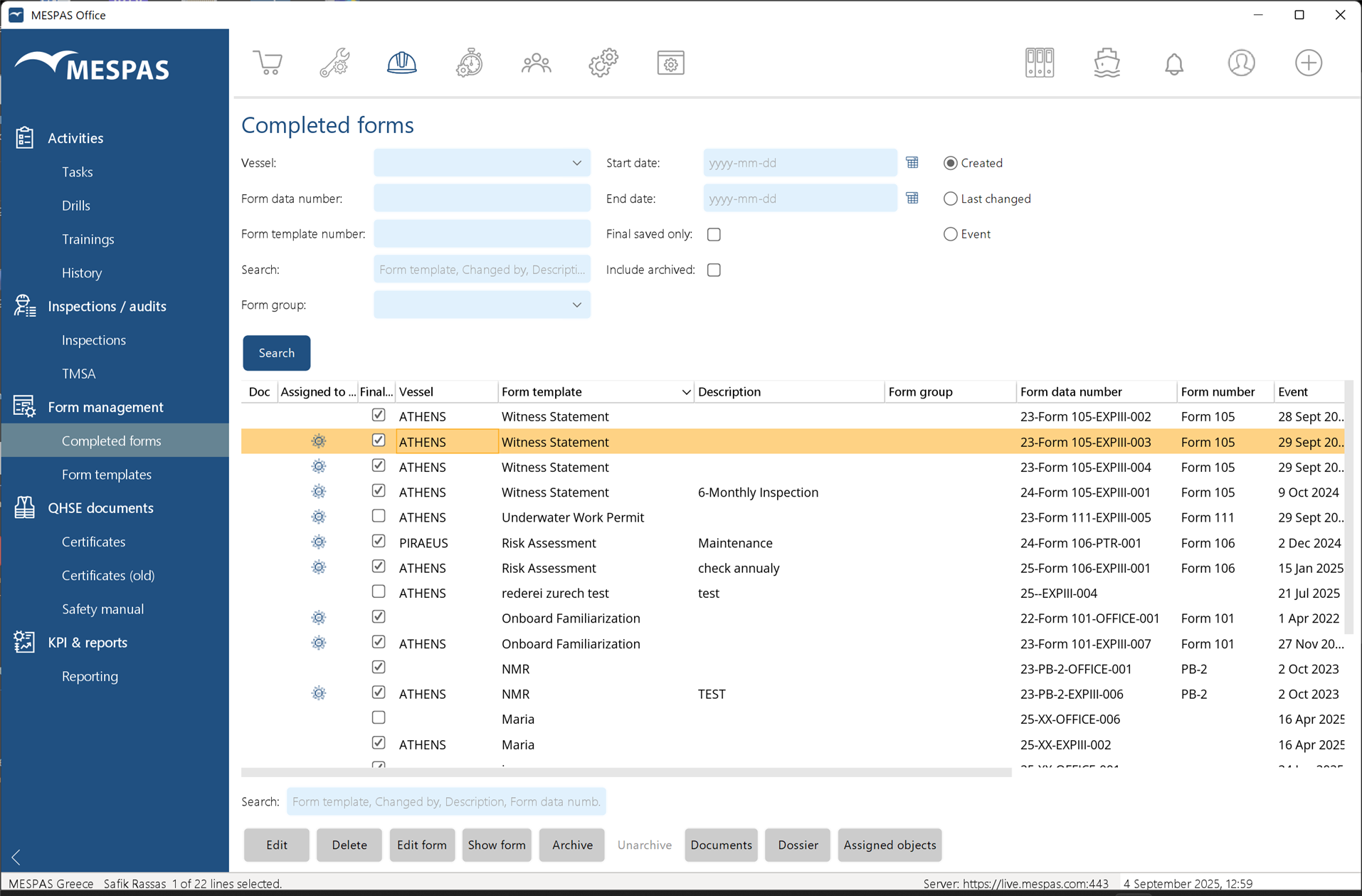
Go to menu "QHSE" > "Completed Forms". •To search for forms, enter the necessary search criteria in the search fields. oYou may choose what date the "Start date" / "End date" - function filters for: The "Created"-date, the "Last changed"-date or the date of the "Event" that required the form to be filled. oBy enabling the "Final saved" ticker, only final saved forms will be displayed and temporary saved ones will be exluded. oYou may include archived forms in your search by enabling the respective ticker. oSearch for the "Form data number", the consecutively number given by the system for each filled form. oSearch for the "Form template number", that may be given to a template as document number when it is uploaded in DMS. •To edit the content of a temporary or final saved form, click "Edit form". Forms that are final saved can only be edited in the office. Save your changes with the save buttons on the form and close the Adobe Reader. •To delete a form, click "Delete". Only "Final Saved" forms can be deleted. •To view a form, click "Show form". •You may in addition assign existing or new documents to a filled in form using "Documents" button. •To check which object a form is assigned to, click on "Assigned Object". This will display the objects (e.g., job, task, etc.) to which the form is attached. If the form is not attached to any object, the "Assigned Object" button will be greyed out. |
|
All changes on final saved forms in the office are logged. To access the log select a final saved form, click on "Edit" and open the tab "Changelog" |

