Running hours screen in the office client
Follow steps in below screen shot A, B, and C to view the vessels running hour records. 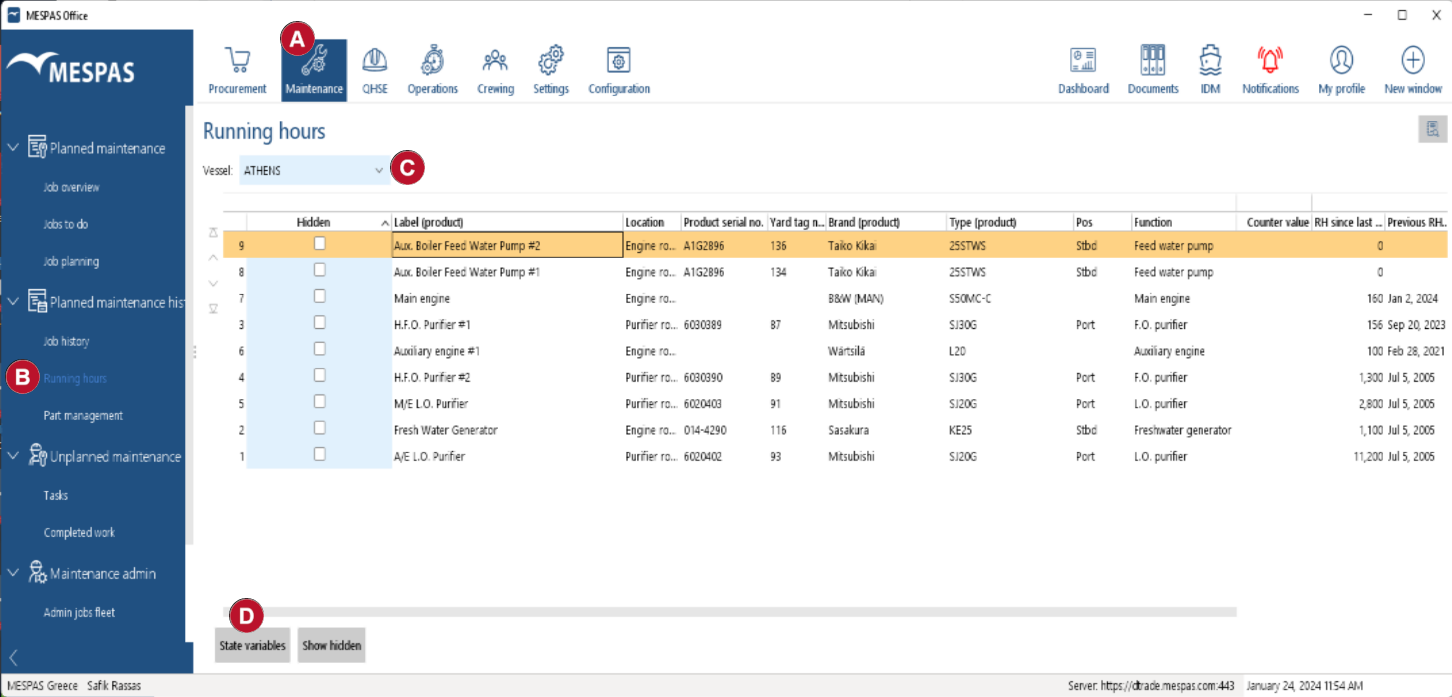 By selecting one row you can view the running hours history by pressing "State variables" |

Acces to running hour records in Maintenance section
Another way to acces the running hours data in MESPAS is to use the Maintenance screens to do so. 1.Open the Jobs to do screen. Alternatively you can use also the "Job overview" screen. 2.Select any job and click "State variables" 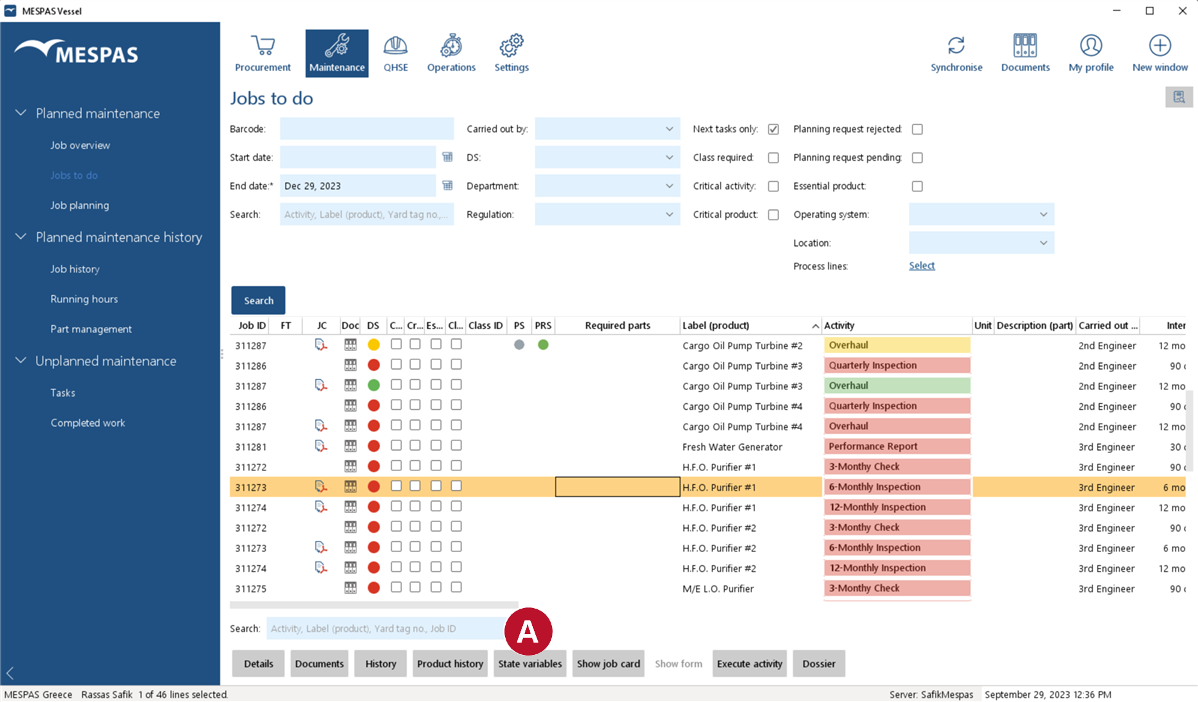 3. |

Check the historical developing of recordings
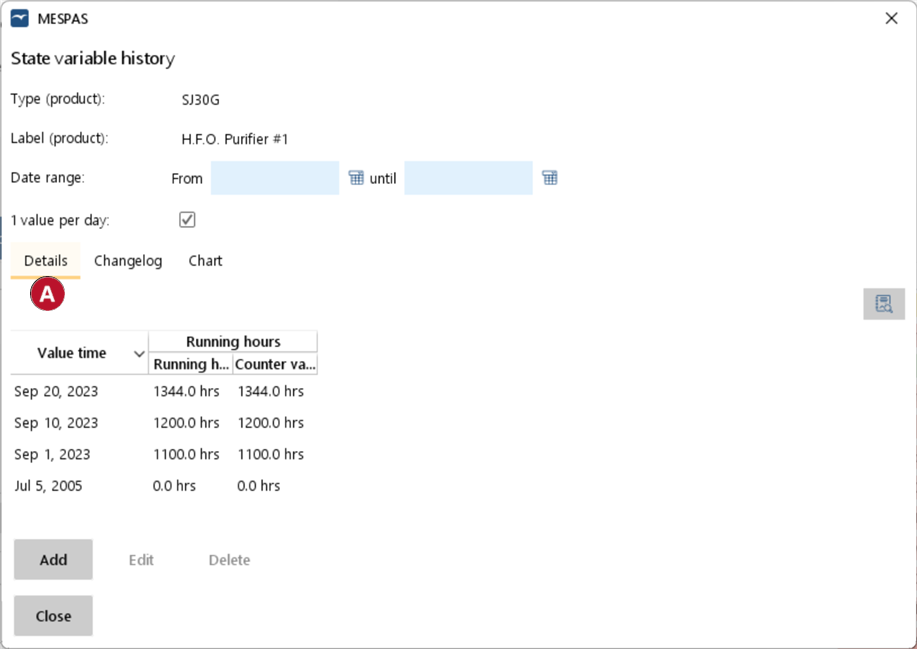 |
Click on tab Details. You may restrict the list to values between two dates only. You may also restrict the values to be shown to 1 value per day only. If so, and if there are multiple recording per day, then only the first recorded value for each day is shown. |
Check for additions, corrections and deletions
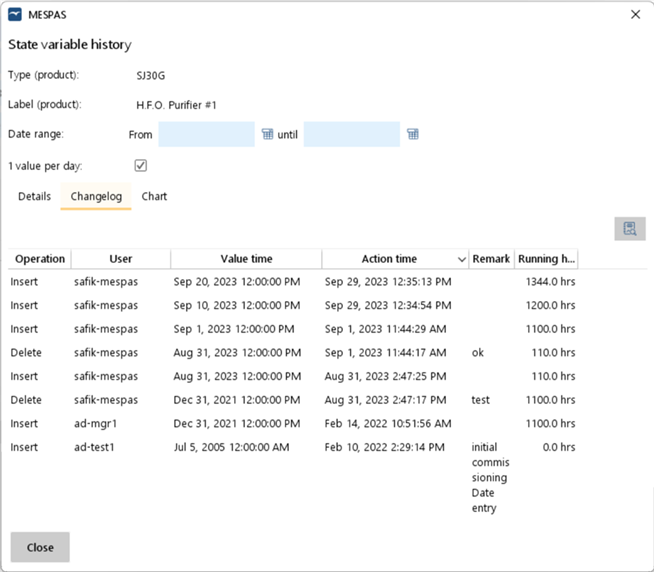 |
Click on tab Changelog. |
View developing as a line chart
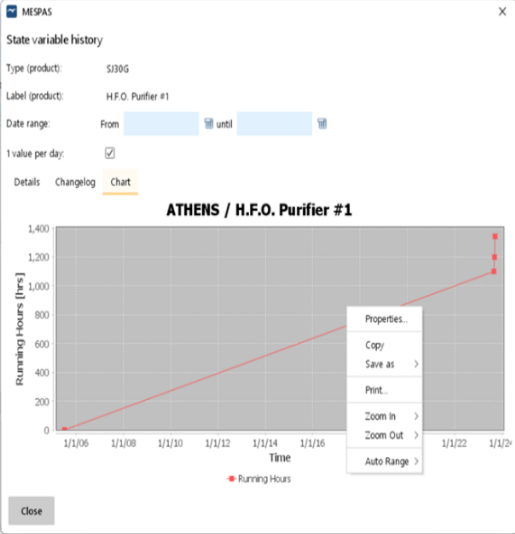 |
Click on tab Chart. Right clicking in the chart area lets you print, zoom and alter the chart's design. |