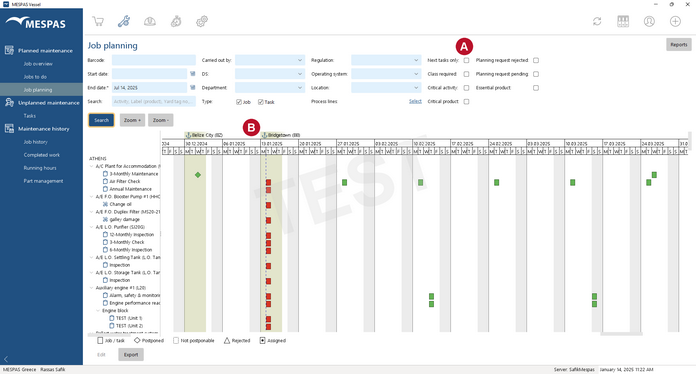
1.Go to menu "Maintenance" > "Job planning". 2.If you only want to see the next upcoming executions of jobs, check "Next tasks only" . .
If you want to see all planned executions of jobs between two certain dates or from today until a certain date, un-check "Next tasks only"  and specify a start and an end date or only an end date correspondingly. The start and end date represent the planning date. and specify a start and an end date or only an end date correspondingly. The start and end date represent the planning date.
If you want to see all rejected job planning requests, check "Planning request rejected" .
If you want to view only corrective activities, check "Task" or check "Job" to view only planned activities.
You may also specify the person in charge and the due state.
3.Click "Search" . 4.Expand the tree on the left as needed. 5.In the top row you see the next ports  as entered in Ship schedule. The days between ETA and ETD are slightly coloured. as entered in Ship schedule. The days between ETA and ETD are slightly coloured. 6.Now the calendar is populated using the following symbols:
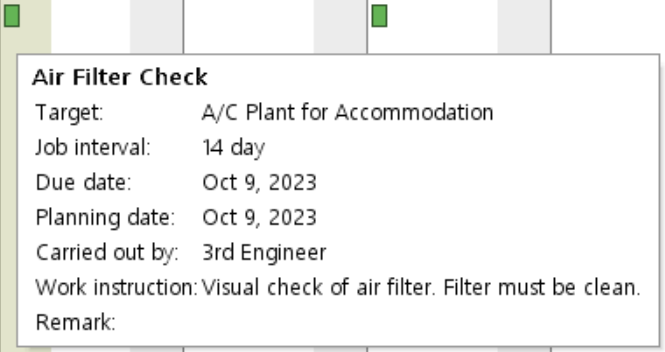
 The rectangular symbols represent planned job executions as scheduled automatically by the system. They indicate a job's due date. The due date and the planning date of such jobs are always identical. The rectangular symbols represent planned job executions as scheduled automatically by the system. They indicate a job's due date. The due date and the planning date of such jobs are always identical.
 The rhombus symbols represent planned job executions which have been rescheduled or added manually by the user correspondingly. They indicate a job's planning date. The rhombus symbols represent planned job executions which have been rescheduled or added manually by the user correspondingly. They indicate a job's planning date.
 The triangle symbols represent planned job executions which have been rescheduled, but the planning date was rejected by the office. The triangle still indicates the rejected planning date. Click "Details" button on a selected job and go to the tab Rescheduling information to check why the rescheduling was rejected. The triangle symbols represent planned job executions which have been rescheduled, but the planning date was rejected by the office. The triangle still indicates the rejected planning date. Click "Details" button on a selected job and go to the tab Rescheduling information to check why the rescheduling was rejected.
The symbols next to the job title indicates as follows
 Corrective activities "Tasks" Corrective activities "Tasks"
 Planned activities "Jobs" Planned activities "Jobs"
The symbols' colours indicate the following states:
 Job's due/planning date within the alarm value (upcoming) Job's due/planning date within the alarm value (upcoming)
 Job overdue Job overdue
 Job's due/planning date beyond alarm value (idle) Job's due/planning date beyond alarm value (idle)
You may check in Job overview the column Planning State (PS) to check if a job was rescheduled  and the column Planning request status (PRS) to check if a rescheduling and the column Planning request status (PRS) to check if a rescheduling
was accepted,
rejected or
 if this decision is still pending. if this decision is still pending.
|