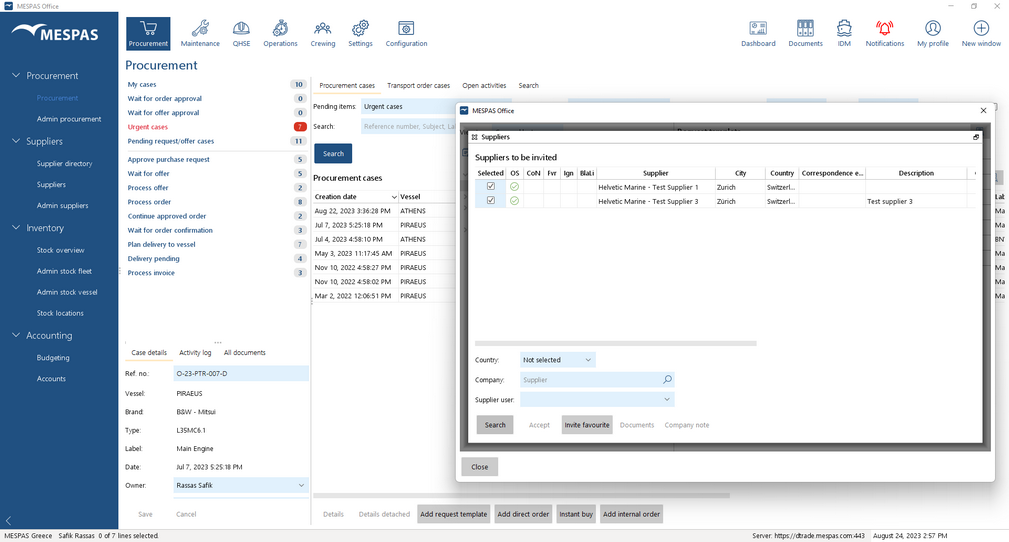
A procurement process is visualized in a procurement case. Displaying a procurement case allows the user to see all relevant data of a procurement object (product details, requested parts, ship schedule, etc.) in one screen.
Go to menu "Procurement" > "Procurement".
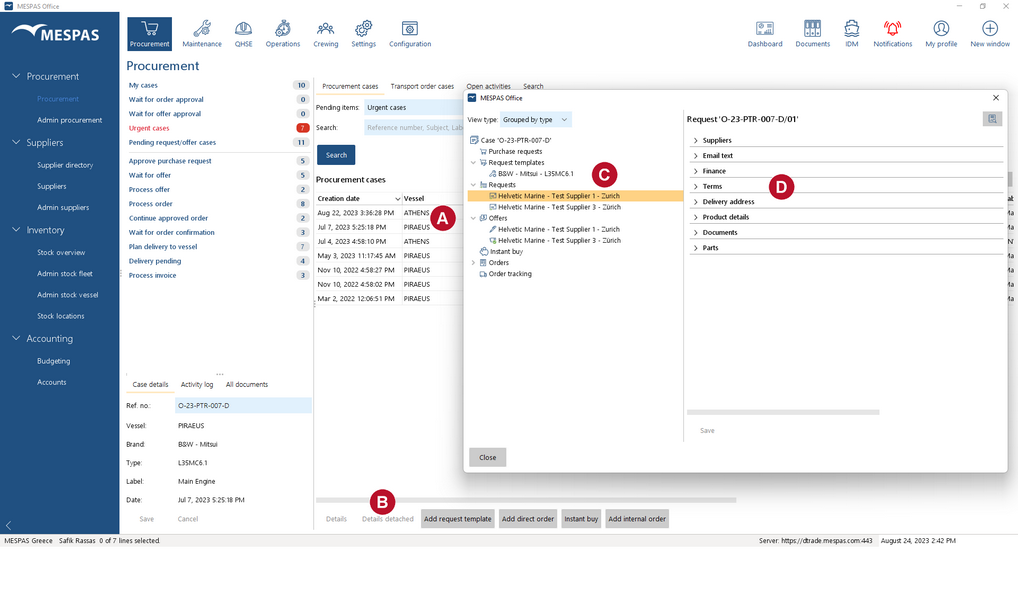
1.Select a procurement case from the search results 2.Through a click on “Details detached” 3.Select an object in the procurement case tree 4.Accordingly, the detail sections will be displayed on the right |
 .
. the case details will be displayed in a window.
 .
. . The detail sections can be expanded in order to fill in the necessary data.
|