Exact match search
In the tabs "Procurement cases", "Open activities" and "Search" you can find search fields to search for free text. The behavior of free text search fields enables you to do an "exact match" search.
 |
Enter a certain string, e.g. any part of a reference number, between quotation marks (e.g. "06-bol") When strings in the search are not placed between quotation marks, the search will display all results containing one or the other string.
NOTE: You may also use the "*" (Asteriks) symbol to use as a "wild card". You can Searching for "Turbo*charger" will find as a result "turbo charger" and also "turbocharger".
The search result will show the particular cases which contain the entered string. You can filter for a specific vessel
|
 .
.


Status of Procurement cases
 |
||||||||||||||||||||
In the tab "Procurement cases" you will find the columns "Manual status"
The (automatic) case status
For an overview of all states of procurement objects (i.e. requests, offers, orders etc.) please see chapter "My filters and states in procurement". |
Request (RFQ) states
|
||||||
1.When you use one of the procurement case filters the results are shown in the "Procurement cases" tab. There you see one column "RFQ state" 2.In "RFQ state" you can sort or filter the cases to see in which cases the RFQ is already answered or not. 3.The categories are:
4.In the "Procurement cases" tab you have the columns "Sent" and "Answered" where you can see the number of requests sent and answered |


Adaptive search criterion
In the "Search" tab the search options are adaptive, depending on what you select in the top field "Search for".
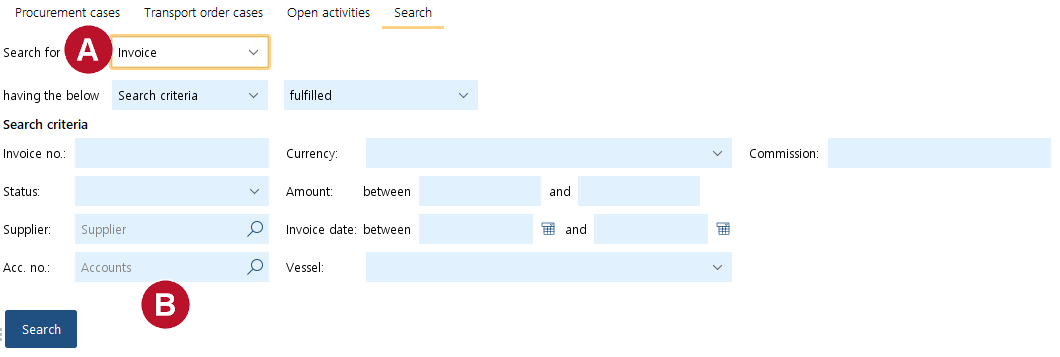 |
1.When looking for an invoice, select "Invoice" 2.The search fields will adapt, showing for example "Acc. no." as a search option |
Search for product (Label), suppliers or accounting numbers
In the "Search" tab you may search among purchase requests, requests, offers and orders connected to a specific product (Label), supplier or accounting number.
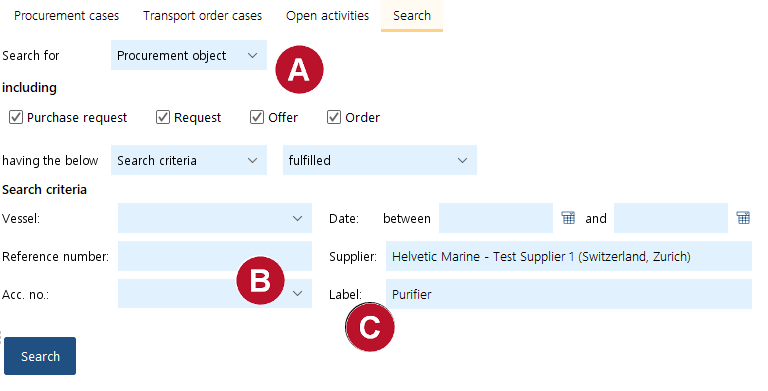 |
1.Select one or multiple "Procurement object" in the drop-down field "Search for" 2.Enter the suppliers name in the field "Supplier" and/or the accounting code in the field "Acc. no." 3.Fill in or activate the other filters to refine your search. 4.You may also search specifically for a certain product by entering it in "Label" 5.Click on "Search". |

Search for invoices
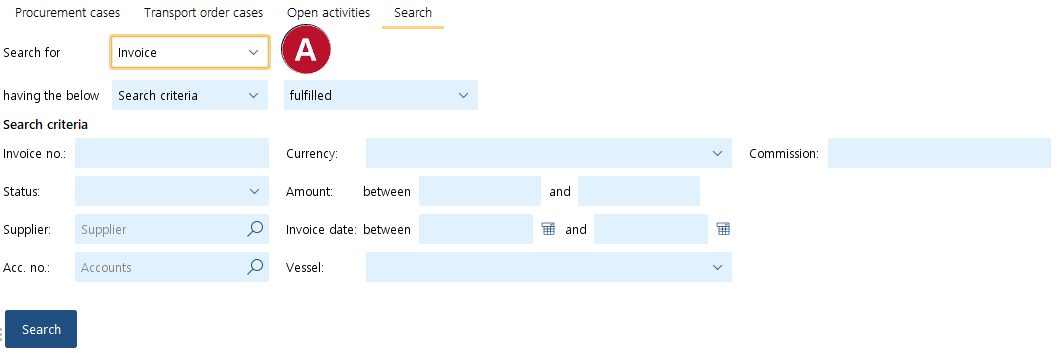 |
1.Select "Invoice" in the drop-down field "Search for"
2.Enter any other search criteria in any of the search fields. 3.Click on "Search". |
Search for orders
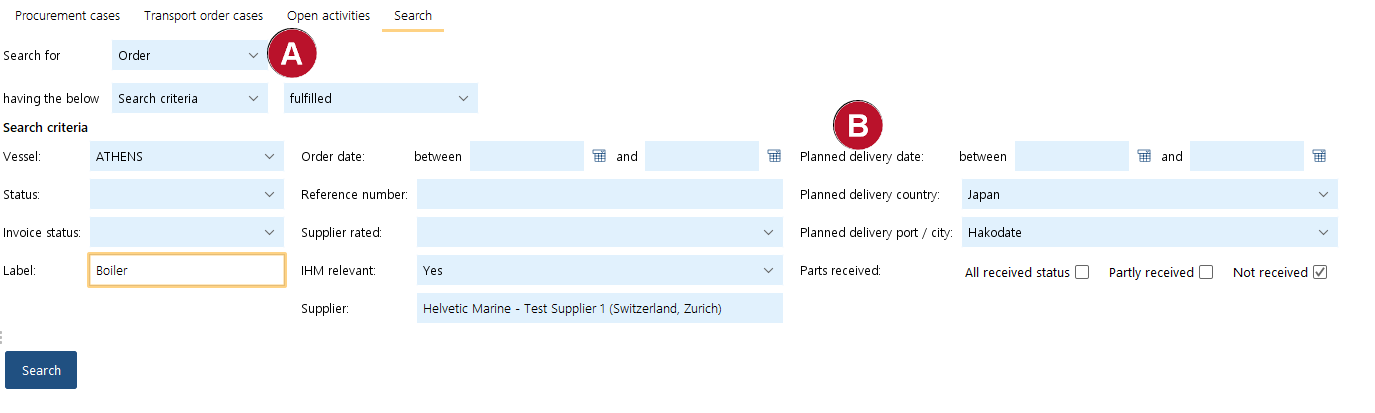 |
1.Select "Order" in the drop-down field "Search for" 2.Select any other fields in "Search criteria" section to refine your search query. 3.On the right-hand side |
Search for order items
 |
1.Select "Order item" in the drop-down field "Search for" 2.In case you know the "brand" and "type" of the equipment you are searching for you can do so using the search options "Brand", "Type" and "Part" 3.If you want to search for items using free text search you may use the field "Search text" 4.You may also refine the search giving a time frame for the order date, select a specific supplier or mark if the part ordered are IHM relevant 5.Click on "Search". |
