Offer overview
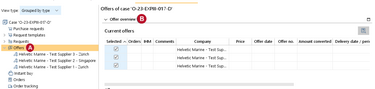
In offer overview you see the most important details of different offers on one screen. This allows you to compare multiple offers of a procurement case.
|
 .
 .
|
Best Practice: You may select, copy and paste the offers in offer overview to an excel file if further processing outside MESPAS is needed. |

Order splitting
If you receive different offers with itemized pricing, you may want to order some items with one supplier and other items with another supplier. Order splitting allows you to easily compare the offered prices and create different orders at the same time.
The above example shows the comparison of two offers, displayed next to each other. Only offers in the state “released” but no offers in the states “rejected” or “closed” are displayed. 4.The header bar provides you with general information about the offers such as supplier name, rebates, transport costs etc. 5.The offered prices per unit are shown in the currency that the above supplier used. Next to it, in "Ref Price/Unit", the prices are converted into your personal currency based on a daily rate. The lower price is displayed in green color NOTE: A discount (Rebate) on the overall price will be reflected in the "Ref Price/Unit" row.
6.To order items just type the required quantity into "QOrd"
7.In "QRfq" the quantity of the requested items are shown. Next to it in "dQ" the difference to the ordered quantity is calculated
8.With a click on "Price history" you get all prices that you paid for the respective item in previous orders
9.With a click on "Fill cheapest" you may automatically fill the column "QOrd" with the requested quantity where the price is the lowest. You may still change your ordered quantities before creating the order
10. When finished click "Create orders"
|
||||||||


 . If you want to order all items that were requested for quotation the column "dQ" should show 0.00 in each row.
 .
 .
