The ROB (quantity remaining on board) values can be entered manually by part or imported by product type. For both actions the user role "Offshore Store Keeper" is needed.
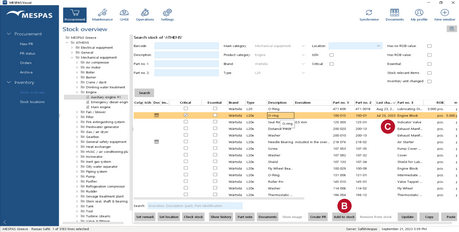
Update ROB manually
|
1.In Stock overview, select a product type in the tree click on "Search". 2.Select a part in the list. 3.Click on "Update". 4.Enter the actual quantity and the reason for the change in the opening window. 5.Click on "OK". |

Import ROB
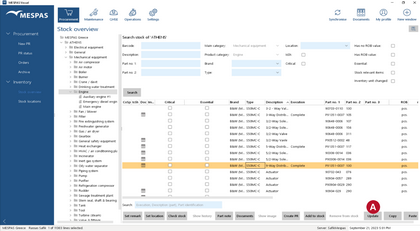
You might want to import your initial ROB values from an external source to MESPAS. To do so, you have to export parts from Stock overview into an Excel or similar file, adapt the ROB values according to your existing data and import the file again:
|
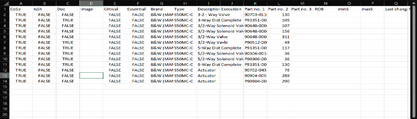
1.Select a product type in the tree click on "Search". 2.Select the parts you like to update using the shift key and the mouse or the Ctrl key + A (to select all parts on the list). 3.Click "Copy" or press Ctrl + C. 4.Open an Excel file, click into the top left cell and press Ctrl + V to paste the parts. 5.You may now paste, export or enter data into the Excel file. Only the columns ROB, Reason for Change (in the column Checked Stock) and Last Change are considered. Please note that you can change the data in these three columns but you can not add new items or change other columns (e.g. the unit) like this. Please enter the date at "Last Change" in yyyy-mm-dd format (eg. 2017-11-22). 6.Copy all cells of the Excel file with Ctrl + A. 7.Open the respective list in Stock overview and click on "Paste". 8.A window pops up to confirm the data import. |
Check and confirm ROB
It may be required that the crew checks ROB values without changing it. To confirm that the ROB was checked and the value correct, the date of the inspection can be entered to the field "Last Change" and "Checked stock" is entered in the respective column.
|
1.Select a product type in the tree click on "Search". 2.Select the parts you like to update using the shift key and the mouse or the Ctrl key + A (to select all parts on the list). 3.Click on "Check Stock". 4.Enter the date of the inspection and click on "OK". 5.The date is now written into the column "Last Change" and "Checked stock" stands in the respective column |