|
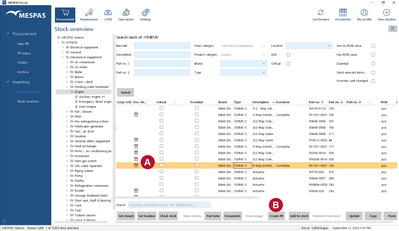
1.Go to menu "Stock" > "Stock overview".
2.Select any level in the data tree (from company to product type) and refine your search in the search form. Click on "Search". 3.Select the parts from the list you want to create a PR for. 4.Click on "Create PR".
5.If the selected part is used on more than one product, a window will appear where the desired product has to be selected. 6.MESPAS TSM proposes default quantities for a purchase request that depend on the settings . The default quantity is calculated to bring the ROB value to the maximum quantity (if defined in stock management) or to the minimum quantity (if no maximum is defined). |


|
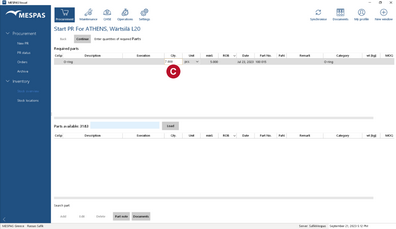
6.A purchase request for the selected parts is prepared. If the "ROB" and "Max stock" values have been set for the selected part, the default quantity requested is set to match the "maximum Stock" value but can still be adjusted.
7.The PR process can be completed as described under the section "Procurement" - Start new PR on vessel
|