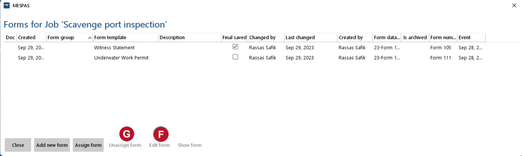
You can fill in forms or assign already filled forms to a job record. This may be helpful e.g. if a job consists of a checklist for port authority or class that has to be filled in.
If a form is assigned to a job it is marked in Job history in the respective column "Form"  and can be viewed with a click on "Show form".
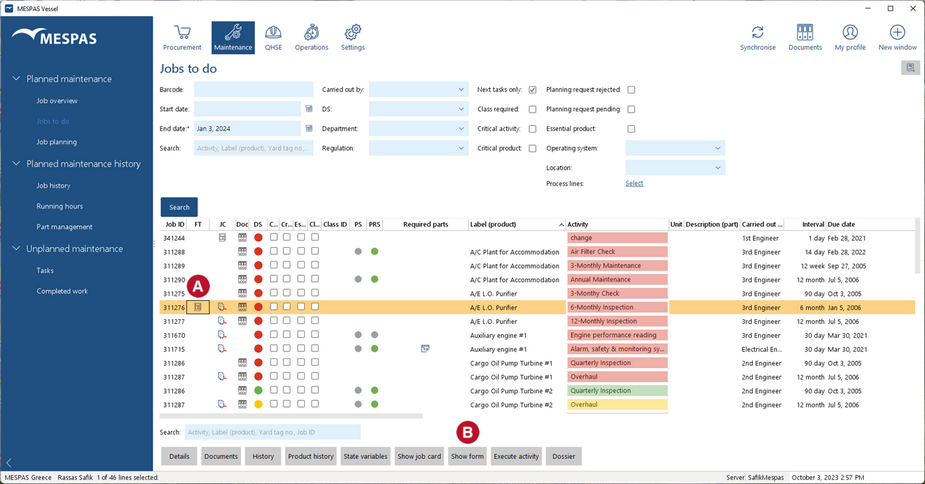
Fill in new form to an existing overhaul record
|
1.Go to "Job history". 2.Select a job record. 3.Click on "Show form" 4.Click on "Add new Form". 5.Search the respective form template and proceed as described in the chapter Fill in form templates. |
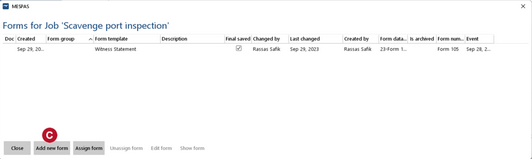

Assign an existing form to an existing overhaul record
|
1.Select a job record. 2.Click on "Assign form" to link an already filled form. 3.Use the search fields to find the filled form or several forms. 4.To assign forms, select one or several forms by setting the ticker in the column "Selection". 5. Leave the screen with a click on "Close". |
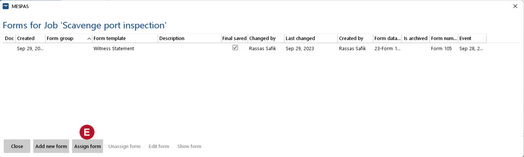

View, edit or un-assign a form
|
1.Select a job record. 2.You may view any form with a click on "Show form". 3.To edit the content of a temporary saved form, select a form and click "Edit form". 4.To un-assign a form select it and click on "Unassign form". |