|
This screen can be accessed from the screen Jobs to do and from the screen Running hours by clicking "State variables" in the corresponding context. 1.Click on tab Details 2.You may restrict the list to values between two dates only.
Only the current value can be edited or deleted. See below. |
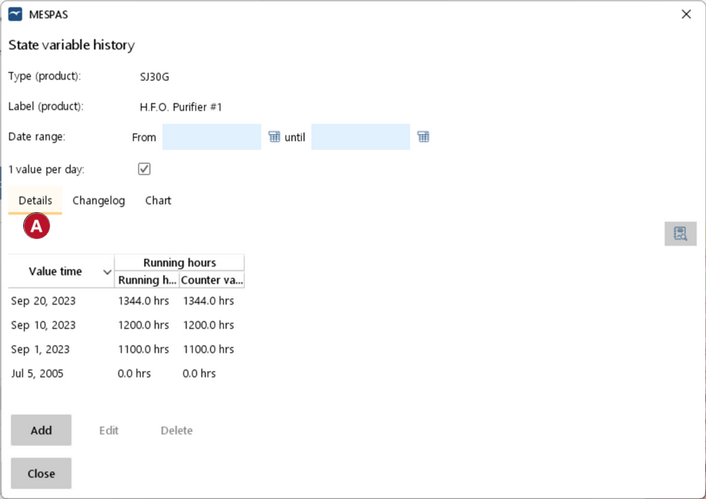

Add an individual state variable entry (e.g. running hours) to a single product
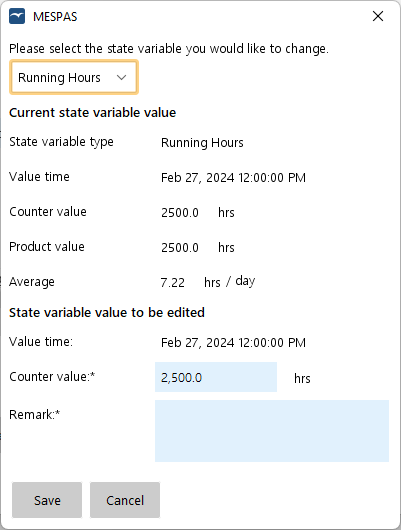 |
1.Click "Add". 2.Select the state variable to add an entry to. 3.Select the date for which you want to add an entry. 4.Enter the new value and a remark. 5.Click "Save" .
The time portion of the date/time may be omitted if you record only one value per day. Otherwise it must be set. |
Edit the value of the last entry
|
You can only edit the last entry. So if you need to correct an entry prior to the last entry, you have to delete all entries one by one which are later than the one you need to correct (see below). Then you correct the entry and add all subsequent entries again until the last one. 1.Click "Edit". 2.Select the state variable to add an entry to. 3.Enter the new value and a remark. 4.Click "Save". |
Delete the latest entry
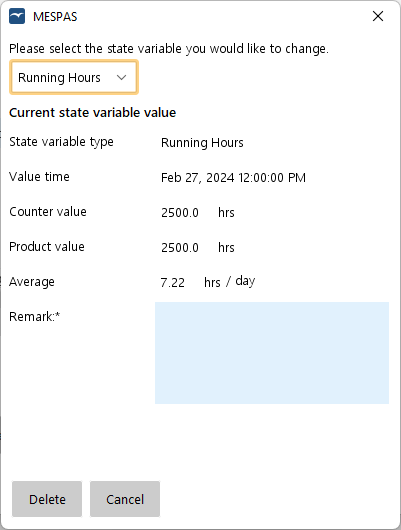 |
You can only delete the latest entry. So if you need to delete an entry prior to the last entry, you have to delete all entries one by one until the one you need to correct. 1.Click "Delete" . 2.Select the state variable to add an entry to. 3.Enter a remark. 4.Click "Delete" . |