In the screen "Job cards" you can see and manage the job card templates. For checking the history of filled job cards see View jobs done (Job history) .
Whenever a job is executed a job card has to be filled. Depending on the activity it can be a default job card or a specific form i.e. with fields for measurement figures. You can either choose job cards from a wide range of templates created by MESPAS or develop your own. For each job card template you can upload different language versions. Of course you can also keep all job cards in English.
View job card templates
 |
1.Go to menu "Maintenance" > "Job cards". 2.Enter a search term or leave the field empty and click on "Search" . 3.The "Job cards" screen is divided in two parts: •On the left side you see the job card record. •On the right side you see the actual PDF file linked to the job card record. 4.To view a job card template select a job card type in the left screen, select a corresponding job card PDF form in the right screen and click on "Show job card" 5.To view a job card details select a job card type in the left screen, select a corresponding job card PDF form in the right screen and click on "Show job card |


Edit or delete job card templates
To be able to add, edit or delete job card templates your login has to have the right/role "Job card administrator".
 |
1.To edit the details about a job card type or job card PDF form, select a job card type and click on "Edit"
2.To delete a job card record or a job card PDF form, select it and click on "Delete" in the respective window. |


Add new job card templates
MESPAS provides a large number of job card templates for all common maintenance activities and for many machinery brands as per their maintenance manuals. In most cases these templates will fulfill your needs. But if you like to have own job cards, specific for your company, you can either commission MESPAS to create them or you can create them by yourself.
|
Many reports in the MESPAS reporting engine are based on the data entered into global job cards. These reports do not work if you replace them by your own specific job cards. |
|
1.Contact your MESPAS project manager to get the templates for the creation of your own job cards. These templates have a header and a footer that can not be edited. 2.To create job card templates you need to have installed the Adobe Acrobat Professional (Adobe X Pro, Adobe XI Pro). 3.For information and guidance about the creation of form fields in Adobe Acrobat Professional please contact your MESPAS project manager.
|

 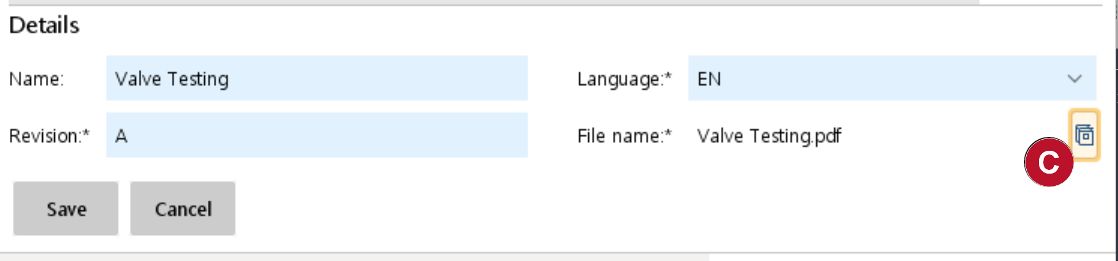 |
Once a job card template is created, you have to upload it to MESPAS TSM. You can either upload a new language version to an existing job card type or create a new job card type and assign your template to it. 4.To create a new job card type go to the job card screen and click "Add" . 5.Fill in the name of the new job card and a code or number for its identification and the sort order into the field "Form". Click on "Save" . 6.To upload a new job card template select the respective job card type in left side window and click on "Add" in the right side window. 7.Fill in the job card template details: •Name: Enter the same job card name as in job card type or it's translation for further language versions. •Revision: Enter a consecutive number or letter. Use the next number or letter when uploading a new version. •Language: Choose the language of this version. This setting will be compared with the language setting in "My profile" when a user executes a job in order to give each user a job card in his language. 8.Click on |


|
Note: You can upload only one job card PDF template of each language and each job card type. When you upload a new version of the same language the old one will be overwritten. In this case use a consecutive revision number or letter. |
It is the job card type that is assigned in "Maintenance" > "Admin jobs fleet" to corresponding the maintenance activities. When you add a new PDF template (new language version or new revision) to an existing job card type it is therefore not necessary to change the job card in the maintenance activity setting. The new revision or correct language version will be displayed automatically when executing the activity.
If you add a new job card type and a job card PDF template, don't forget to assign it in "Maintenance" > "Admin jobs fleet" to a PMS setting.
It may be that there is no language version to a users language or no job card PDF template to a job card type:
•If the respective language version is missing, the job card will be displayed in the English version.
•If the English version is also missing, the Standard job card will be shown in the users language.
•If the Standard job card in the users language is missing, it will be shown in English.
•The English version of the Standard job card is always available.