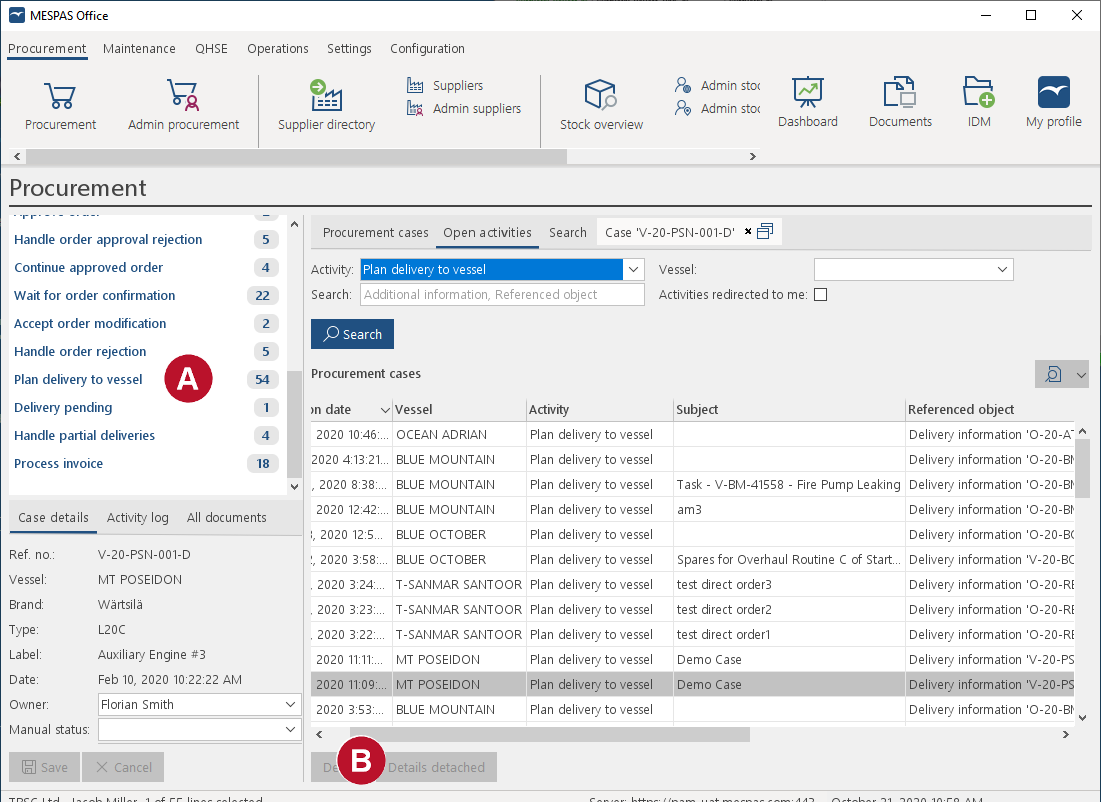
1.Select "Plan delivery to vessel" in the filter on the left  . The "Plan delivery on board" activity list will open up and show all sent orders without a recorded planned delivery or a delivery confirmation. 2.Select an order from the list and double click on the order or click "Details" to open the case detail view  . 
3.The order tracking state is shown in the left side tree  with an icon as below:
|
Unplanned. The fields "Country, Port and ETA" in Ship schedule are not entered and plan delivery is not done yet. Only these orders are filtered for in the "Plan delivery on board" list.
|
|
|
Delivery pending. The fields "Country, Port and ETA" are entered in the tab "Planned delivery on board" or the ship schedule is assigned. The vessel did not confirm the reception of any parts yet.
|
|
|
Shipment delivered. Office or vessel have confirmed the reception of the shipment but the content (completeness of the delivery) was not yet checked on the vessel.
|
|
|
Parts completely received. The vessel has confirmed the reception of all ordered parts or goods.
|
|
|
Parts incompletely received. The vessel confirmed the reception of some of the ordered parts, but they did not yet receive all of them.
|
4.Depending on the above order tracking state different actions are required in the office:

|
Plan delivery. Enter the fields "Country, Port or city and Planned delivery date" in the tab "Planned delivery on board". The status will change to "Delivery Pending" . Or right-click on the order in the left side tree and set the shipment delivery date (if the delivery has arrived on board) in which case the status will change to "Shipment delivered"  .
|
|
|
Delivery Pending. Set the shipment delivery date when the shipment has arrived on the vessel.
|
|
|
Shipment delivered. The office or the vessel has confirmed the reception of the shipment but the content (completeness of the delivery) was not yet checked on the vessel.
|
|
|
Parts received. The vessel has confirmed the reception of all ordered parts or goods. No further action needed.
|
|
|
Parts incompletely received. The vessel has confirmed that some but not all of the ordered parts or goods are received. Note the partial delivery and enter a remark about the further procedure.
|
The above actions may be skipped when the vessel confirms the delivery of the shipment or the reception of the parts on board.
To check later if the parts reception was confirmed by vessel or at the office, click on the tab "Search" and search for orders. Check the icon in the column "PaRcv" in the order search result table:
|
|
All parts received confirmed on the vessel.
|
|
|
Parts incompletely received (entered on the vessel).
|
|
|
Shipment delivered, but parts not yet checked (entered on the vessel).
|
2.Per default there are five tabs shown in the object details part of the screen: Shipment Location, Delivery Information, Planned Delivery on Board, Documents and Agent. If your company decided to switch to "port based order tracking" in the procurement presettings, there is the additional "Ship schedule" tab to enter the port stays.
Shipment locations
3.Open the tab "Shipment location"  . In the upper part of the tab you can enter the number of boxes and weight of the shipment.
4.In the lower part of the screen is the Shipment location(s) list, where you can monitor the current location of your shipment. At the top of the list there is always as first station of the shipment the supplier, at the bottom of the list there is as final destination the vessel. The current location of a shipment is marked in the column CL with a globe  . 
5.Enter planned and effective delivery or dispatch dates for each location of the shipment. When you enter a date into the effective delivery field, the current location mark will jump to the respective line of the list.
6.Delayed shipments are marked red. A shipment is delayed if the planned delivery or dispatch date is in the past and if the respective effective delivery or dispatch date has not yet been entered.
7.At the final delivery location an icon indicates if the Planned delivery date and the ETA/ETD from the ship schedule fit together.
|
|
The Planned delivery date is after the ETD date (the ship has already left the port when the goods are delivered there).
|
|
|
The Planned delivery date is before the ETA date (the goods have to be stored at the port until the ship arrives).
|
|
|
The Planned delivery is during the ship stay in port.
|
|
|
No Ship schedule data has been assigned.
|
8.To add further locations as agents, forwarder, warehouses etc., select the line below the new location and click on "Add"  . You may also edit or delete all lines except the supplier and the vessel (top and bottom line).
9. A new window opens. When adding or editing a new location, first select at the top of the window if you want to add or edit a delivery address or a forwarder.
10. Click on "Add" or select a location and click on "Edit" and fill in all relevant fields.
11. Click on the bottom line (your vessel) and on "Assign ship schedule" to select a port stay from your vessels ship schedule. The list shows by default all planned port stays that are not marked as completed yet. You may use the country, port and date filters to find the relevant port stay. Select it as destination for the delivery by setting a ticker in the column "Selected".
This function is only available if your company does not use the "port based ship schedule" as explained above.
The date of the effective delivery on the vessel is automatically entered when the vessel confirms the arrival of at least a part of the delivery or when in the office the reception of all parts is confirmed (as above). All red markings for delayed shipments disappear.
Ship schedule
If your company uses Procurement Presetting, you can select here a port from the Ship schedule that was entered on the vessel. You may select multiple orders (with the Shift or Ctrl key) from the list filtered by Open Activites -> Delivery Pendig" and set the shipment delivery date on all of them with a right click.
Procurement Presetting, you may enter here the country, port, berth, ETA, ETD and the Terminal. This dates are then used in the tab Shipment Location to check with the Planned Delivery Date.
Delivery information
You may enter additional delivery information here.
Planned delivery on board
Enter the country, port or city (not both) and the Planned delivery date. This date is then used in the tab Shipment location to check with the Planned delivery date.
Documents
You may add documents as waybills, delivery notes etc. to an order in the order tracking section. Open the tab "Documents" and just drag and drop the file into the it or click on "Add" and browse for the file. Fill in all relevant fields (the mandatory fields are already filled if you use drag and drop).
You may also edit, delete, view or download a selected document with the respective button.
Agent
Open the tab "Agent" to enter as free text any information about the agent (for office use only).
|