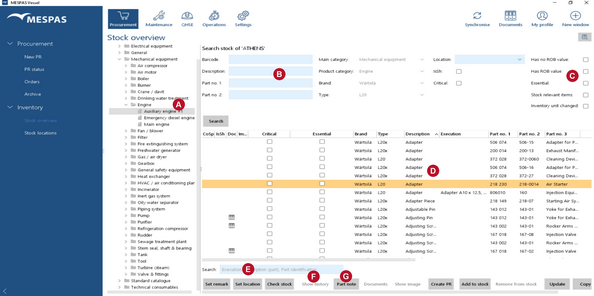
The screen "Stock overview" allows you to view part stocks
|
1.Go to menu "Procurement" > "Stock overview". 2.Select vessel > main category > product category > product type in data tree
You may filter for all parts • which are short (quantity ROB below minimum): Set the ticker in "IsSh" and click on "Search". These parts are marked in the respective column with a red dot •which are defined as critical (the definition of critical parts is made in the office). •which have an ROB entry or for parts which have none. •whit a unit that was changed in the office. These parts are marked red until the vessel had the occasion to convert the existing ROB when updating it or adding or removing parts. •which are defined as essential parts. (the definition of essential parts is made in the office). 3.Once you clicked the "Search" button you may further filter the results by entering a search term into the text field at the bottom of the screen. 4.If a part has stock movements recorded, its stock history can be viewed by clicking "Show history". 5.If parts were used in PMS or for a task or if parts were added from an order, the a reference is shown in the remark field of the stock history. Select the history entry and click on "Details" to show the relevant information about the respective order, task or PMS Activity. 6.Click on "Part note" to view, add, edit or delete a note on the respective type of part that is also visible in the procurement process or on the vessel. Click on "Set Remark" to enter a remark on an individual part that is also visible but not editable at the office.
|
|
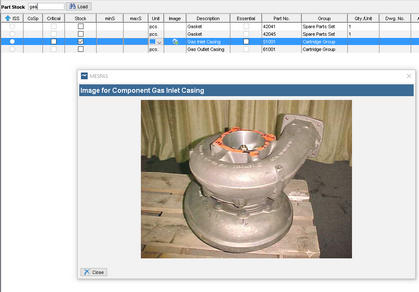
Pictures of stock itemsA mark in the column "Image" indicates that there is an image available for the respective part. Click on "Show Image" to open it.These pictures are uploaded by MESPAS only. While there will be relatively few in the beginning, they will increase over time starting with the items of often used catalogues. |