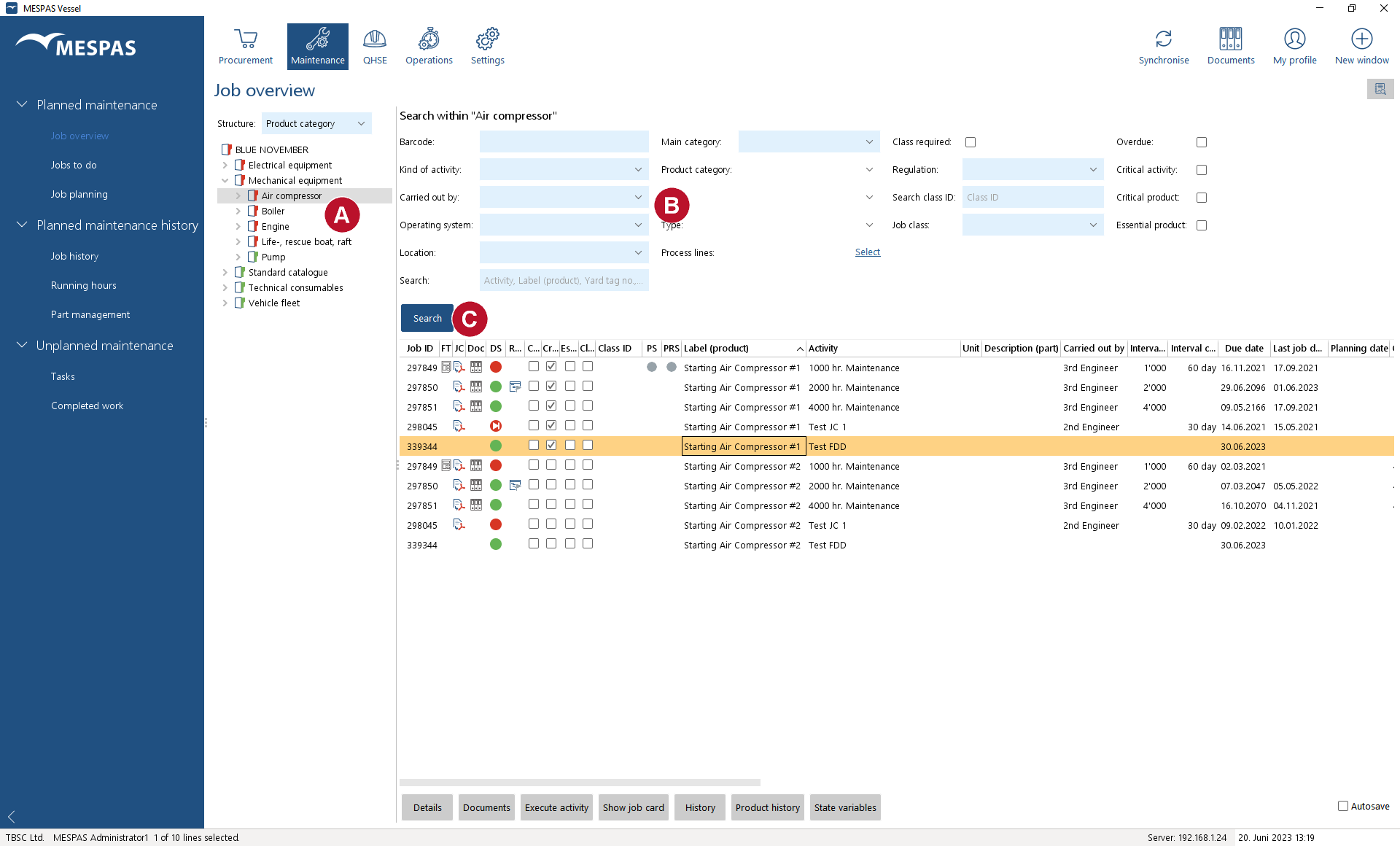
 Go to menu "Maintenance" > "Job overview". 1.Browse in the left side product tree •Green icons mean that the category does not contain jobs which are due. Red icons mean that the category contains jobs which are due. 2.Use the filter and search fields to refine your selection 3.Click on "Search"
•In the column Interval Hours and Interval Calendar you can see if the job interval is based on running hours or calendar time (e.g. 30 days) or both. If a maintenance activity has a calendar time based and a running hours based interval, two hypothetical dates are calculated but only the earlier one is used as due date. •In the column "Required parts" you can quickly check if parts required for a job are defined:
For instructions on how to create a purchase request for the missing parts, please see chapter PR from required parts list. •In the column Planning status (PS) you can check if a job was rescheduled •View and print the empty job card with a click on "Show job card". You may select several jobs with the Ctrl- or Shift-key and create one PDF file containing all of them. The job card shown is a read only version without the save buttons. |
|||||||||
|
To accept or reject a new planning date, click on "Details" and open the tab "Rescheduling information". Click on "Approve" or "Reject" and enter in the field "Remark" the reason for your decision or further instruction for the vessel. |
||||||||


|
You may use a barcode scanner to scan the code on a job card or on the "jobs to do report" and automatically open the relevant job. The detailed instruction on how to do this depends on the scanner model you use. For guidance on how to implement barcode scanning into the Stock Management, Planned Maintenance and Tasks of MESPAS TSM please contact MESPAS . |
