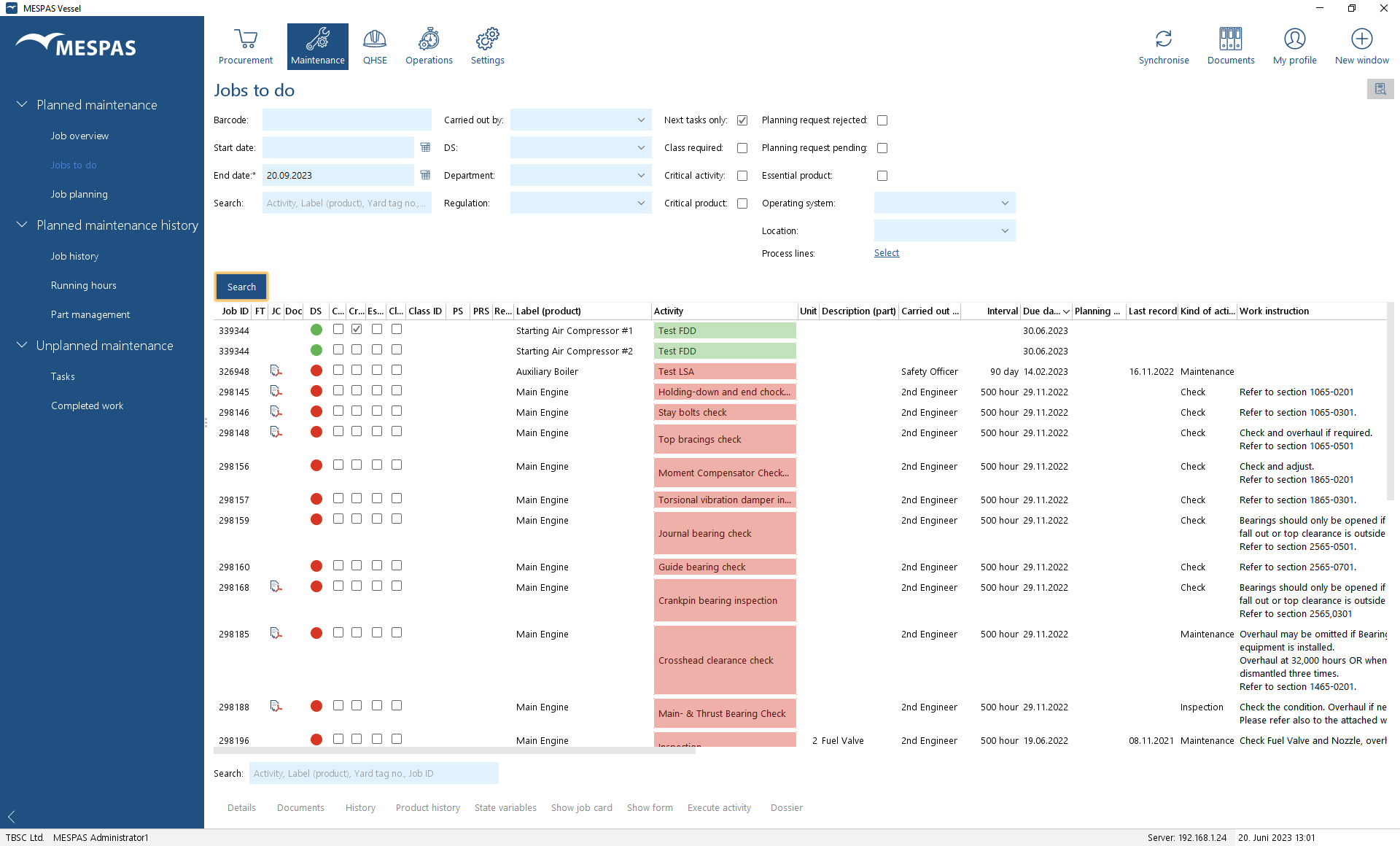
1.Go to menu "Maintenance" > Jobs to do". 2.If you only want to see the next upcoming planned executions of jobs, check "Next tasks only".
3.Click 4.To filter for jobs that are assigned to one or more Process lines, click on "Select" and select the Process Line(s). If the filter Process lines is in use, only jobs on products are shown that are assigned to all selected Process lines. So if you select all Lines that are not running and on that you can carry out maintenance, Products that are part of a running and a stopped Process Line are not shown. |
||||
1.
|


Reading the future jobs list
Every job has a due date which is calculated by the system, i.e. the job should be executed on that date. However, the crew on board may change the date of execution in the course of planning the jobs on your vessel. Then, the job gets a planning date in addition to the due date. Relative to the due date and the planning date, the system deduces a due state and a planning state: |
The column Last record (last overhaul) shows the date when the job was executed for the last time. The Job Interval is specified manually when setting up jobs. If a calendar based and a running hour based interval is set, the interval is shown that results in the earlier due date. If the Job was postponed you find the reason for the postponement in the column "Remark". |
||||||||||||
|


Possible actions from within the future jobs list
By selecting a job, you may:
•Execute the job by clicking "Execute Activity". This is only possible for the next upcoming planned execution of any job. Subsequent jobs cannot be executed prematurely.
•View/download any documents assigned to the job, the product or the product type by clicking "Documents". A new window with search and filter fields appears. If the ticker in the box "PMS Setting" is set, only documents that are assigned to the job will be shown. If the ticker in "PMS Setting" is removed, all documents assigned to the job, the product or the product type are shown. Refine your search with the other filter- and search fields.
You cannot add, edit or delete documents here. Documents with regard to jobs-to-do can only be managed by the office. Documents with regard to jobs-done can be managed in the screen Job history.
•View the history of the job's state variables (e.g. running hours) by clicking "State variables" . This is only possible for jobs which have state variables different that calendar time, e.g. running hours. There you may correct historical entries for state variables, e.g. running hours correction.
•View all historical executions of a job by clicking "History".
•View the history of the specific products (all jobs and tasks related to the product) by clicking "Product history"
•View and print the empty Job Card with a click on "Show job card". You may select up to ten jobs with the Ctrl- or Shift-key and create one PDF file containing all of them. The job card shown is a read only version without the save buttons.
•In the column Planning State (PS) you can check if a job was rescheduled  and in the column Planning Request State (PRS) if
 a rescheduling was accepted,
 rejected or
 if this decision is still pending in the office or
 if this job is not planned apart from the due date.
Click on "Details" and open the tab "Rescheduling information" to see the superindentent in charge, the date and reason of an acceptance or rejection of a rescheduling.
You may filter for all jobs where a new planning date was not accepted or rejected yet. Set the ticker in the filter "Planning Request Pending" .You may also filter for jobs where the office rejected the planning by setting the ticker into "Planning Request Rejection".
•In the column Required parts you can quickly check if parts required for a job are defined: and if yes, if there are sufficient spare parts on board:
|
Required parts are defined for this job. |
Click on "Details" and the tab "Required parts" to see the list of parts and to check if there are sufficient spare parts on board:
|
The required parts are all on stock in sufficient quantity. |
|
Some of the required parts are not on stock in sufficient quantity or the quantity on stock was not entered in the stock overview on the vessel or the quantity on stock and the required parts are entered with a different unit (e.g. pcs. and ltr.). |
For instructions on how to create a purchase request for the missing parts, please see chapter PR from required parts list.
|
You may start your work on maintenance jobs by setting the filters to due jobs that have to be carried out by you and sort them according to due date. Click on Shift and use the mouse to select the top ones and then click on "Show Job Card" to print the relevant Cards. |