MESPAS TSM allows you to manage the invoices and payments for an order. Suppliers who are using MESPAS SBM will send you their invoices by email. You may select in the Procurement Administration screen a dedicated email address and choose if you like to have the invoice added to MESPAS TSM attached to the respective order. Invoices that come from suppliers that don't use MESPAS SBM have to be entered manually if needed. When using the Budgeting Module you may want the system to distinguish between the ordered amount and the invoiced amount by accounting number. Like this you are able to monitor the accruals. Depending on your procurement presettings you may also approve invoices for booking and export them to your accounting software.
Go to menu "Procurement > Procurement".
|
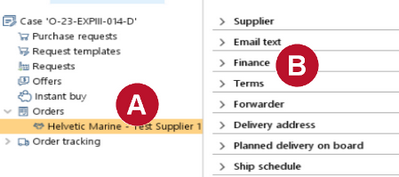
1.Left click on the order to select it. 2.Double click on the tab Finance to open it. |
||||||||||
 The field "Remaining"
|
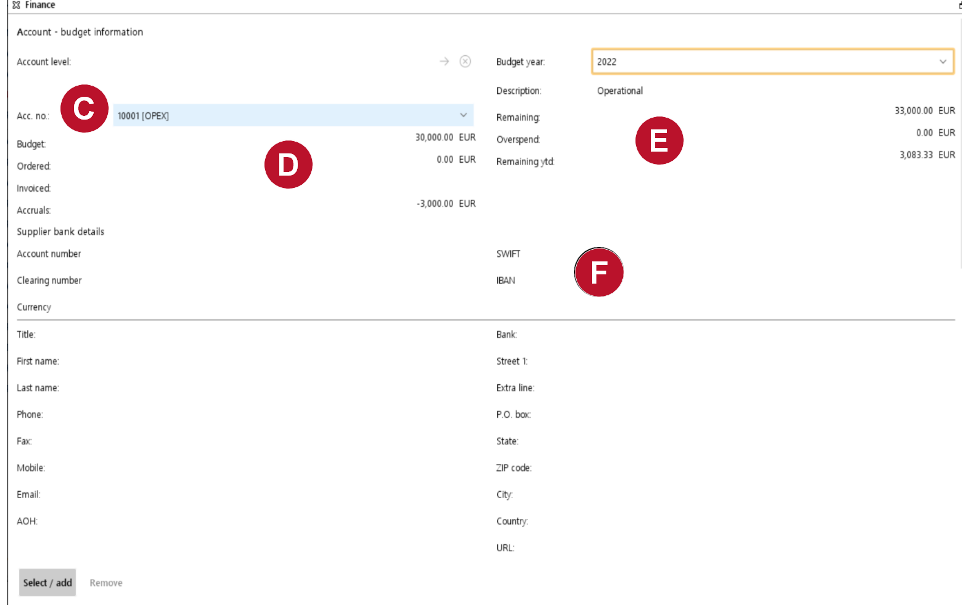
3.Select the account in field "Acc. no." Note: The fields "Account level" information is only visible if the corresponding interface is activated. If you are interested in using the Account level interface you may contact support@mespas.com 4.The system will then be able to display the following figures a.Budget amount of the budget year selected in the top-right corner. The budget year is automatically set as the current year budget (if one is defined). b.Ordered amount - When an order is sent and confirmed and assigned to this account the figure is reflected here. Canceled orders are not reflected in this figure. c.Invoiced amount - Once an invoice is recorded and released (see below for invoice recording) the amount is reflected here. NOTE: an invoice can also be assigned to another account than the order account. In that case the invoice amount is NOT reflected in this field. d.Accruals amount is the difference of order amount and invoiced amount. this amount will be nullified as soon as the ticker "All invoices received" is set true (see further down in this section). 5.the Supplier bank details |


 shows the remaining budget on this accounting number. Only sent and confirmed orders will be subtracted from this value. If the budget amount is already used up by orders, the respective amount is shown in the field "Overspend".


Invoice address and invoices
 |
1.The Invoice address defined in "My profile" or "Procurement administration" section can be linked to vessels in IDM. Like this each vessel has its standard invoice address assigned automatically. If this link is not available, you may pick from existing invoice addresses or add a new one with the button "Select/add" |
||
|
2.Click on "Add" to enter an invoice. The system will give you the order amount and currency as default values that you may change. 3.Enter all required fields. 4.You may change the supplier if multiple suppliers are invoicing for this order. 5.The field D/C stands for for "debit" or "credit". 6.If you receive a credit info from the supplier, you can enter the credited amount and use "C" in the D/C field. There is no need to enter a negative amount. You can enter the amount as a positive number and the system will store it properly. 7.The suppliers Bank account is pre-selected if defined in the supplier administration section. |
||
|
|||


Release Invoices
A newly added invoice is in status "Entering". In this status the invoice record can be deleted or changed and is not yet relevant for any accounting systems and will not be exported. To be able to close a case or to have them exported to the accounting system through the invoice export interface, all invoices have to be released for booking (whether they are exported to an accounting software or not).
|
Select the invoice again and click on "Release". In MESPAS TSM the invoices can have various status. Please find following a table of available status and possible actions that are connected to a status.
* applies only if Invoice approval parameter for your company is set. |
||||||||||||||||||||||||
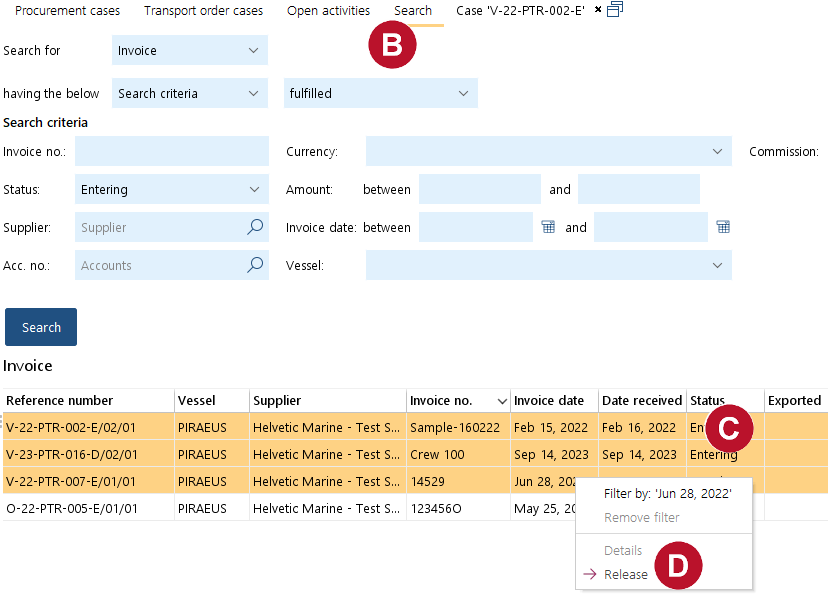 |
You may also release invoices as a mass action. 1.Go to "Procurement" > "Search" sections 2.Click on the tab "Search". 3.In the filter fields search for "Invoice" and State: "Entering". 4.Select one or several invoices. 5.Right click on the selected invoices and left click "Release". |

Attach invoice as document and enter payments
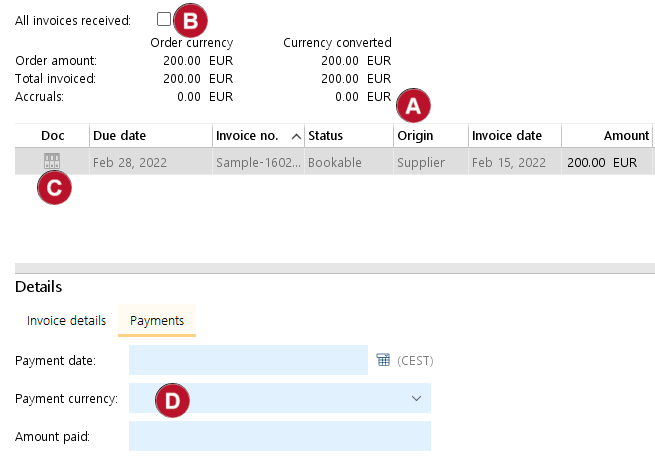 |
1.The column "Origin" 2.PDF invoices are attached automatically from suppliers that use MESPAS SBM. Alternatively you can upload them manually by drag-and-drop the invoice document to the invoice record 3.When you have received all invoices concerning an order, set the ticker at "All invoices received". 4.You may enter payment date, amount and currency to an invoice. To do so select an invoice and click on the tab Payments, enter the figures and click on Save |